Peripherals
Practical 1.2 peripherals-annex.pdf · PDF
You plug your headphones into a new laptop. Two seconds later, the sound comes out of them instead of the speakers. Nobody installed anything. How did the laptop know what you plugged in — and how to talk to it?
In Computer architecture we said a computer that talks to nobody is a brick: it needs I/O, the kitchen's doors and windows. This page walks around the building and looks at every door: what comes in, what goes out, what kind of lock each one has, and who translates at the doorway.
What you will learn
- What a peripheral is, and how to classify one: input, output, both, or storage
- The main interfaces: USB (versions and connectors), HDMI, DisplayPort, Bluetooth
- Why a USB-C connector says nothing about speed
- What plug and play means
- What a driver is: the translator between the operating system and the device
- How to see and configure peripherals on Linux (
lsusb) and Windows (Device Manager)
What is a peripheral?
A peripheral is any device that connects to the computer from the outside to get information in, get it out, or store it.
"Peripheral" means around the edge: the keyboard, the screen, the printer, the webcam, a USB stick. The CPU, RAM and motherboard are the core; peripherals sit around them.
We classify them by the direction information flows:
| Type | Direction | Examples |
|---|---|---|
| Input | World → computer | Keyboard, mouse, microphone, webcam, scanner, game controller |
| Output | Computer → world | Monitor, speakers, printer, projector |
| Input/output | Both ways | Touchscreen, headset with microphone, multifunction printer (print + scan), network card |
| Storage | Keeps data, both ways | External disk, USB stick, SD card |
Careful: same device, two directions
A touchscreen is one object but two jobs: the screen shows (output), the glass senses your finger (input). When you classify, ask about the information, not the plastic. A game controller with vibration? Buttons are input, the rumble motor is output: input/output.
Interfaces: the shape of the door
An interface is the agreed way a peripheral connects to the computer: the shape of the plug, the wires, and the rules for talking.
USB — the door for almost everything
Before USB (Universal Serial Bus, 1996), every kind of device had its own port: a round one for the keyboard, a wide one for the printer, another for the mouse, another for the joystick. USB replaced almost all of them with one universal door.
The speed has grown a lot since then. Remember the ÷8 trap: these are bits per second.
| Version | Year | Top speed | Marketing name |
|---|---|---|---|
| USB 1.0 | 1996 | 12 Mbit/s | Full Speed |
| USB 2.0 | 2000 | 480 Mbit/s | Hi-Speed |
| USB 3.0 (later renamed USB 3.2 Gen 1) | 2008 | 5 Gbit/s | SuperSpeed |
| USB 3.2 Gen 2 | 2013 | 10 Gbit/s | SuperSpeed+ |
| USB4 | 2019 | 40 Gbit/s | |
| USB4 version 2.0 | 2022 | 80 Gbit/s |
A USB 2.0 port at 480 Mbit/s moves at most 480 ÷ 8 = 60 MB/s. Copying a 30 GB game to a USB stick through that port takes over eight minutes, even with the fastest stick in the world.
Connectors: the shape is not the speed
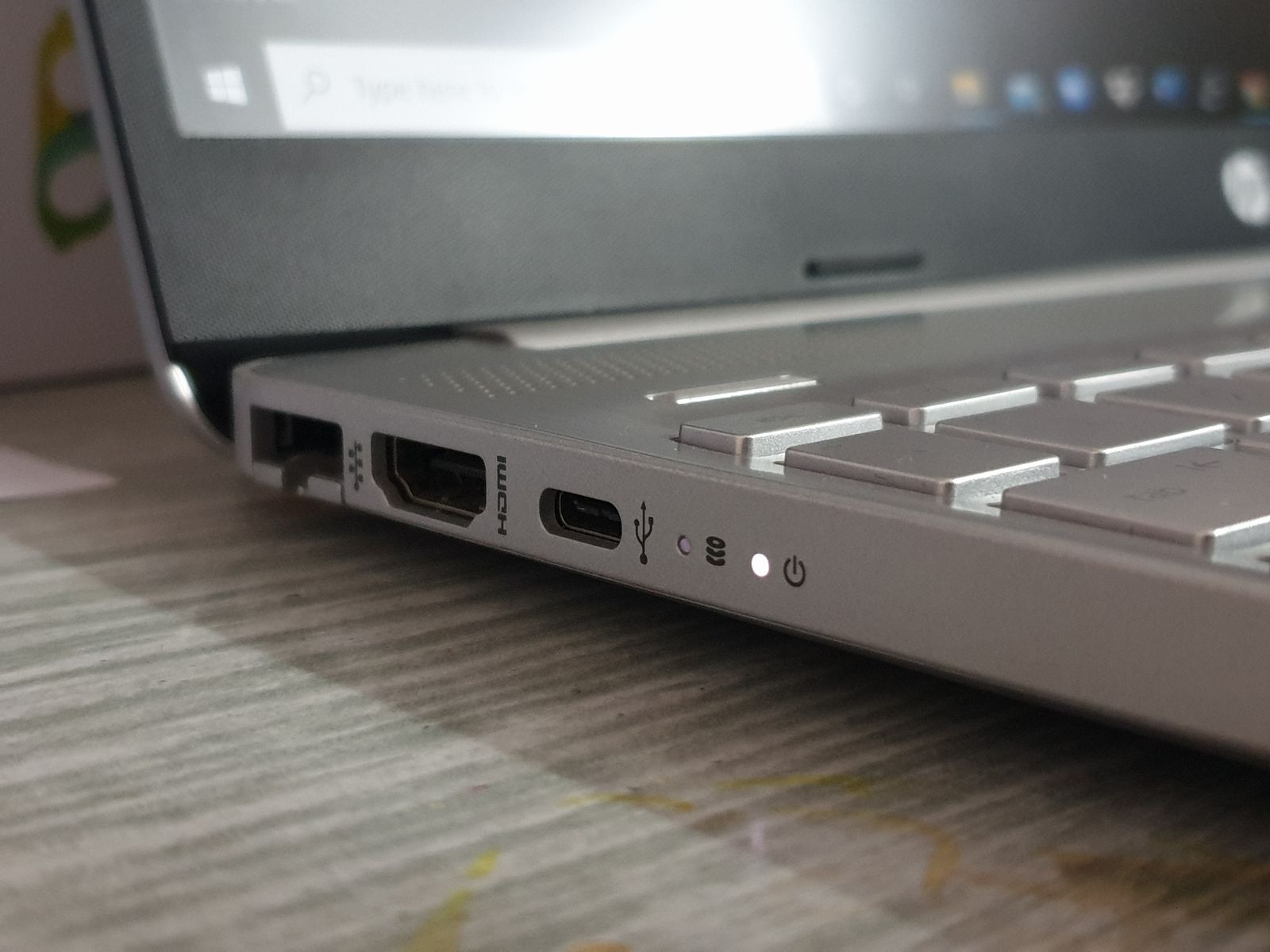
The version (the speed and the rules) and the connector (the shape of the plug) are two different things:
| Connector | What it looks like | Where |
|---|---|---|
| USB-A | Flat rectangle, only fits one way | Chargers, PCs, USB sticks |
| USB-B | Squarish | Printers, some audio gear |
| Micro-USB | Small trapezoid | Older phones and gadgets |
| USB-C (2014) | Small oval, reversible | Phones, laptops, almost everything new |
The USB-C trap
A USB-C plug can carry USB 2.0 at 480 Mbit/s, or USB4 at 40 Gbit/s, or video, or 100 W of charging — or only some of those. The shape tells you nothing. Cheap USB-C charging cables are often USB 2.0 inside. Read the spec, not the plug.
Since 28 December 2024, the EU requires USB-C charging on new phones, tablets, headphones, cameras and more; laptops joined on 28 April 2026. One charger, many devices.
Video: HDMI and DisplayPort
- HDMI (High-Definition Multimedia Interface, first version 2002) carries digital video and audio in one cable. It is the TV and console standard. HDMI 2.1 reaches 48 Gbit/s: enough for 4K at 120 Hz.
- DisplayPort (by VESA, 2006) is the computer-monitor standard, popular for high refresh rates. It can also travel inside a USB-C cable — that is how one USB-C cable can drive a monitor.
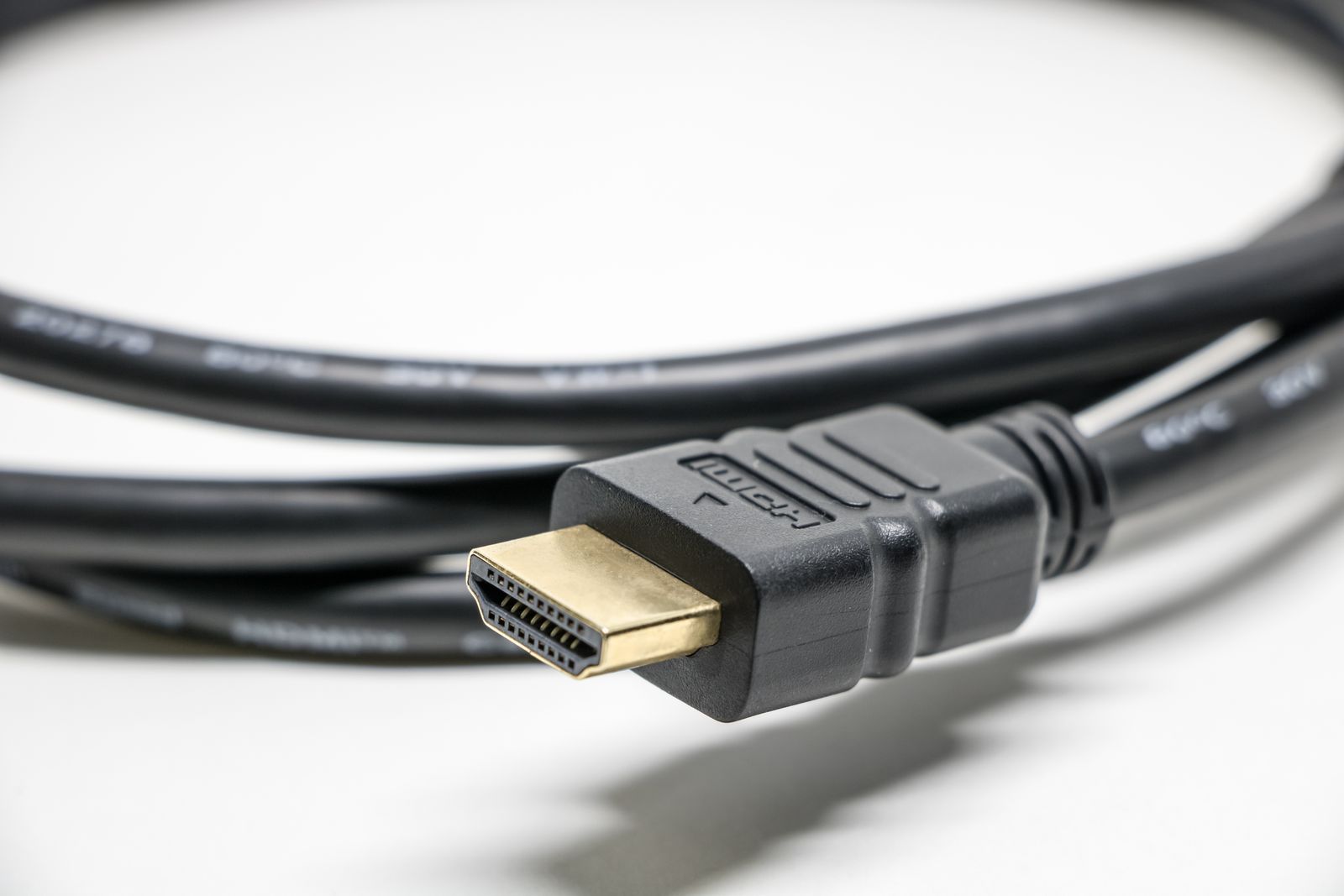
Older connectors you may still find in the classroom: VGA (blue, 15 pins, analogue) and DVI (white, wide).
Bluetooth: the door without a plug
Bluetooth is a short-range wireless interface for peripherals: headphones, mice, keyboards, watches. Typical range is around 10 metres. Before two devices can talk they must be paired: introduced to each other once, so they recognise each other later.
The name comes from Harald "Bluetooth" Gormsson, a 10th-century Viking king who united Denmark and Norway. In 1997 the engineer Jim Kardach proposed it as a placeholder: a king who united tribes, for a technology meant to unite devices. The placeholder stuck. The logo is Harald's initials in runes, ᚼ and ᛒ, merged into one symbol.
Plug and play
In the early 1990s, adding a sound card to a PC could mean opening the case, moving tiny jumpers on the board, and choosing settings by hand so it would not clash with other cards. Get it wrong and neither worked.
Plug and play means the computer detects a new device, identifies it, and configures it automatically.
Windows 95 made it mainstream, and USB made it normal. Every USB device carries an ID: a vendor ID (who made it) and a product ID (which model), both 16-bit numbers written in hex. When you plug it in, the computer reads that ID and looks for the right software to talk to it. That software is the next piece.
Drivers: the translator at the door
The operating system cannot possibly know the details of every printer, webcam and graphics card ever made. Each model has its own commands. So between them sits a translator:
A driver is a small program that lets the operating system use a specific device. The OS speaks a general language ("print this page"); the driver translates it into the exact commands that model understands.
flowchart LR
    APP["<b>App</b><br>'print this page'"] --> OS["<b>Operating system</b><br>general request:<br>'print'"]
    OS --> DRV["<b>Driver</b><br>the translator at the door:<br>speaks this model's language"]
    DRV -->|"USB, Bluetooth,<br>HDMI..."| DEV["<b>Device</b><br>printer, webcam,<br>graphics card..."]
In the kitchen: the chef shouts "I need 2 kg of tomatoes". The supplier at the back door only understands their own order form. Someone at the door fills the form in correctly — every supplier has a different one. That person is the driver.
Many common devices need no extra driver: USB keyboards, mice, sticks and headsets follow standard device classes, and the operating system already includes one generic driver per class. That is why your headphones worked in two seconds. Graphics cards, printers and special hardware usually need the manufacturer's driver.
Why drivers matter to you
A driver runs with very high privileges, right next to the kernel. A buggy driver can freeze the whole computer; a malicious one can take it over. Install drivers only from the manufacturer or through the operating system's updates — never from a random download site.
See your own peripherals
Linux
Bus 001 Device 003: ID 046d:c52b Logitech, Inc. Unifying Receiver
Bus 001 Device 004: ID 0bda:58f4 Realtek Semiconductor Corp. Integrated Webcam
Each line is one USB device. 046d:c52b is the vendor ID : product ID, in hex — the ID the computer used for plug and play. Plug a USB stick in and run lsusb again: a new line appears.
To see the whole chain from plug to driver, watch the kernel's messages while you plug something in:
Windows
Right-click the Start button → Device Manager. Every device appears grouped by type (Keyboards, Display adapters, Sound...). From there you can:
- See whether a device works: a yellow warning triangle means Windows has no working driver for it.
- Update, roll back or uninstall a driver (right-click → Properties → Driver).
- Disable a device without unplugging it.
Everyday settings (default speakers, mouse speed, pairing a Bluetooth device) live in Settings → Bluetooth & devices.
Key takeaways
- A peripheral connects from outside to bring information in, send it out, do both, or store it. Classify by the direction of the information, not the object.
- An interface is the door: USB for almost everything, HDMI and DisplayPort for video, Bluetooth for wireless.
- The USB version sets the speed (480 Mbit/s up to 80 Gbit/s); the connector is only the shape. USB-C says nothing about speed.
- Plug and play: the device announces its vendor ID and product ID, and the computer configures it automatically.
- A driver is the translator between the operating system and one specific device. Many devices use a generic class driver already built into the OS.
- Linux:
lsusblists USB devices. Windows: Device Manager shows devices and their drivers.
Quick check
1. How would you classify a headset with a built-in microphone?
- Input/output
- Input only
- Output only
- Storage
The speakers send sound out and the microphone brings sound in. Classify by the direction of the information, not by how many objects you are holding.
2. What does the USB version (for example USB 2.0 or USB4) tell you?
- The maximum speed and rules the port can use
- The physical shape of the plug on the cable
- The brand of the company that made the device
- Whether the device needs a driver to work
The version defines speed and protocol: USB 2.0 tops out at 480 Mbit/s, USB4 at 40 Gbit/s. The shape is the connector (USB-A, USB-C...), a separate thing.
3. A cable has USB-C plugs on both ends. What can you say for sure about its speed?
- Nothing, the shape of the plug does not define the speed
- It supports at least 10 Gbit/s, because USB-C is new
- It supports exactly 40 Gbit/s, like USB4
- It is limited to 480 Mbit/s, like every charging cable
USB-C is only a connector. The same shape can carry USB 2.0 or USB4, video or only power. Cheap charging cables are often USB 2.0 inside, but not all of them.
4. What is a driver?
- A program that lets the operating system talk to a specific device
- The chip inside a USB stick where the files are stored
- The cable that carries data between the device and the computer
- A setting in the firmware that chooses the boot order
A driver is the translator: the operating system makes a general request and the driver turns it into the exact commands that model understands.
5. Why did your new USB keyboard work without installing anything?
- It follows a standard class, and the OS already has a generic driver for it
- Keyboards are so simple that they do not need a driver at all
- The keyboard installs its own operating system when plugged in
- The firmware converts keystrokes into text before the OS sees them
USB devices announce their ID and their device class. Keyboards, mice, sticks and headsets use standard classes, so the OS's built-in generic driver handles them: that is plug and play.
6. You plug an old printer into a Windows PC. It appears in Device Manager with a yellow warning triangle. Select the two sensible next steps.
- Install the driver from the manufacturer's official website
- Use Device Manager to update the driver for that device
- Download a driver pack from the first website that appears
- Change the USB-A cable for a USB-C cable to fix the speed
The triangle means Windows has no working driver. Get one from the manufacturer or through Windows Update. Random driver sites are risky because drivers run with very high privileges, and the cable shape has nothing to do with drivers.
That completes the tour of one machine. Next, we connect machines to each other: networks.