Cabling a LAN
Exercise cabling-a-lan-annex.pdf · PDF
Wi-Fi exists. So why does every office still pull kilometres of cable through its walls and ceilings? Look up in the classroom: the access point on the ceiling has one cable, and that one cable is enough.
In Meet RouterOS you talked to your group's router. Today you build the road your packets will use: the cables of your group's LAN, made with your own hands, tested, and plugged in. Every network you configure in the coming weeks runs on top of these cables, so they have to work.
What you will learn
- Name the parts of a UTP cable and explain why the wires are twisted
- Put the eight wires in T568B order
- Crimp an RJ45 plug on both ends of a cable and prove with a cable tester that it works
- Tell a straight-through cable from a crossover cable, and why the difference rarely matters today
- Cable the group's LAN and check the link and its speed from the PC
- Why a cable that links at 100 Mbit/s instead of 1000 is broken
Why still cables?
Three reasons a cable beats Wi-Fi in an office:
- It is faster and more stable.
- It does not share the air with the neighbours.
- It can carry power to a device. That is why the access point on the ceiling needs one cable, not two.
You met the categories in Networks: Cat 5e and Cat 6 both carry 1 Gbit/s up to 100 m. Past 100 m, a copper link is out of standard.
Inside the cable
UTP (unshielded twisted pair) is a cable with eight copper wires in four pairs, each pair twisted, with no metal shield.
Each pair has its own colour: orange, green, blue, brown. In each pair, one wire is solid and the other is white with a stripe of that colour.
Why twisted?
On 19 July 1881, Alexander Graham Bell got the patent for the twisted pair. Telephone wires ran next to electric tram lines, and they hummed. If you twist the two wires of a pair, the noise hits both of them equally. The receiver listens only to the difference between the two wires, so the noise cancels out. The same trick, more than 140 years later, is inside this cable.
Careful: the twist is not there to keep the wires together
The twist is the noise protection. That is why you may untwist at most about 13 mm at the plug. Untwist 5 cm and the cable becomes slow or unreliable.
The T568B order
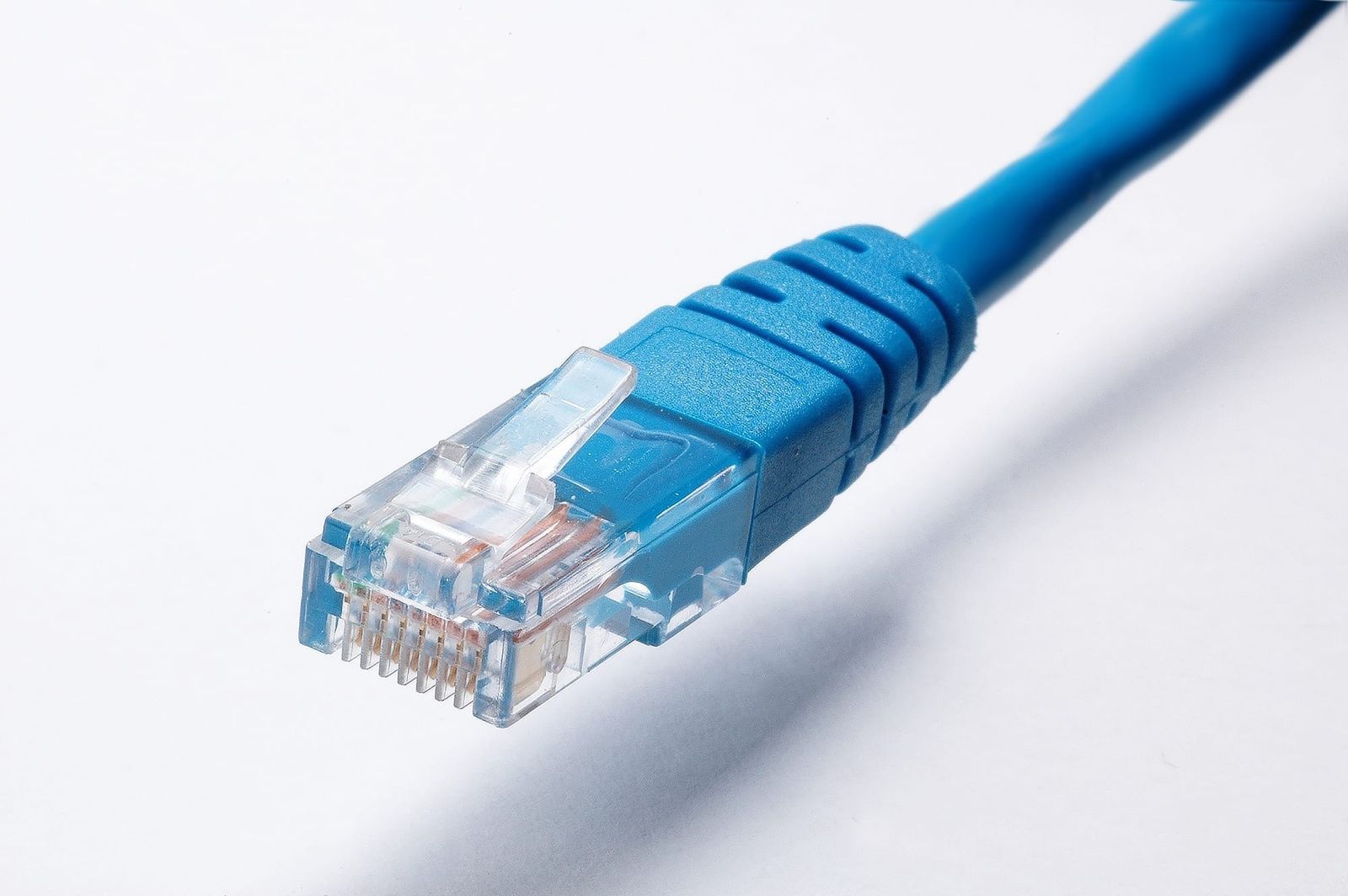
The plug is an RJ45. Its technical name is 8P8C: 8 positions, 8 contacts.
The order used in almost every patch cable is T568B. Hold the plug with the clip down, the gold contacts up, and the cable towards you. Pin 1 is on the left.
| Pin | 1 | 2 | 3 | 4 | 5 | 6 | 7 | 8 |
|---|---|---|---|---|---|---|---|---|
| Colour | white-orange | orange | white-green | blue | white-blue | green | white-brown | brown |
Three things to notice:
- Striped, solid, striped, solid... all the way.
- The green pair is split: it sits on pins 3 and 6, around the blue pair. This is the mistake everyone makes once.
- 10 and 100 Mbit/s Ethernet use only pins 1, 2, 3 and 6 (orange and green). 1 Gbit/s uses all four pairs. So a cable with a broken blue or brown wire still "works", but only at 100 Mbit/s.
Straight-through and crossover
T568A is the other standard: the orange and green pairs swap places.
| Cable | Ends | Use |
|---|---|---|
| Straight-through | Same order on both ends (B and B) | Everything today |
| Crossover | T568A on one end, T568B on the other | Once needed to join two PCs directly |
Today's ports detect the cable and swap the pairs by themselves. That feature is called Auto MDI-X. So you always make straight-through cables, T568B on both ends.
Careful: matching ends are not enough
"Any colour order works if both ends match." The cable may link, but then the pairs no longer match the twists: errors and low speed on long runs. Use T568B.
Crimp it, test it
You make one cable alone; the group shares the crimping tool. The steps:
- Strip about 2.5 cm of the outer jacket. Do not cut into the wires inside.
- Untwist the four pairs and straighten the eight wires. Put them in T568B order, flat, between thumb and finger.
- Cut them straight, about 13 mm from the jacket. Do not untwist more than that.
- Push the wires into the plug until you see eight copper dots at the front. The jacket must be inside the plug, under the plastic clamp.
- Read the colours through the plastic, left to right. Correct? Crimp once, hard.
- Do the same on the other end. Test the cable.
flowchart LR
    S["<b>Strip</b><br>2.5 cm of jacket"] --> O["<b>Order</b><br>T568B, flat"]
    O --> C["<b>Cut</b><br>13 mm, straight"]
    C --> P["<b>Push</b><br>8 copper dots<br>at the front"]
    P --> K["<b>Check, crimp</b><br>colours through<br>the plastic"]
    K --> T["<b>Test</b><br>1 to 8 on<br>both boxes"]
Reading the cable tester
A cable tester has two boxes, one for each end. It sends a signal down each wire in turn.
| What the far box shows | It means |
|---|---|
| Lights 1 to 8, one by one, same number on both boxes | The cable is good |
| A light that never comes on | An open wire: it has no contact |
| Numbers in a different order | Crossed wires: the order is wrong |
A plug cannot be crimped twice. If a wire has no contact, cut the plug off and redo that end. The first plug usually goes in the bin: that is normal.
Where people get stuck
| What you see | What to do |
|---|---|
| Right order in your fingers, wrong order inside the plug | Hold them flat until they are inside; check through the plastic before crimping |
| Wires do not reach the end of the plug | Look at the front: you must see eight copper dots. Pull out and push again |
| Jacket ends outside the plug | Wires cut too long; trim to about 13 mm |
| Green on pins 3 and 4 | The split pair: look at the table again |
| Pin 1 on the wrong side | Clip down, contacts up, cable towards you |
Offcuts
Short pieces of copper on the floor are sharp. Put every offcut in the box.
Cable the group's LAN
Now the cables go to work. The plan for each group of 3:
ether1  -> nothing yet (label it WAN: the way out, later in the unit)
ether2  -> PC of student A
ether3  -> PC of student B
ether4  -> PC of student C
flowchart TB
    subgraph LAN ["Group G's LAN (an island: no Internet yet)"]
        R["<b>MikroTik</b>"]
        A["PC of student A"]
        B["PC of student B"]
        C["PC of student C"]
        R ---|"ether2 · your cable"| A
        R ---|"ether3 · your cable"| B
        R ---|"ether4 · your cable"| C
    end
    R -.-|"ether1 · WAN<br>empty for now"| W(["Wall socket"])
Unplug your PC from the wall socket and plug it into your group's router with a cable you made. Then check the link on your PC:
Replace NAME with your wired interface from the first command. It starts with en, for example enp3s0, but it is not always that one.
| You see | It means |
|---|---|
UP and LOWER_UP |
Layer 1 is alive: a working cable and something at the other end |
NO-CARRIER |
No working cable, or nothing at the other end |
1000 |
The negotiated speed in Mbit/s: good |
100 |
Only two pairs work (unless the router's ports are only 100 Mbit/s) |
On the router, the port light is on. In WinBox, Interfaces shows the flag R (running) on that port.
Then look at ip -br address. Your PC has no IP address, or one starting with 169.254. Nobody is giving addresses in this LAN yet. The light is on, the link is up, and nothing works: no address, no ping. A cable is layer 1. The next layers (a bridge, addresses, a DHCP server) come in the next session.
Finally, draw the physical map of your group's LAN on the Exercise sheet: router, ports, cables, PCs, and who sits where. Then put the PCs back on the wall socket. The cables stay with the router, labelled.
Careful: the light on is not the network working
A light means layer 1 only. Without addresses there is no communication.
Key takeaways
- UTP: eight copper wires in four twisted pairs, no shield. The twist cancels noise (Bell's patent, 1881); untwist at most 13 mm.
- The RJ45 (8P8C) plug in T568B: white-orange, orange, white-green, blue, white-blue, green, white-brown, brown. The green pair is split on pins 3 and 6.
- Straight-through (same order on both ends) is what you make; crossover is history thanks to Auto MDI-X.
- A cable tester must show 1 to 8 in order on both boxes. A cable that links at 100 Mbit/s instead of 1000 has a broken pair.
ip -br linkshowsLOWER_UPwhen layer 1 works;/sys/class/net/NAME/speedshows the speed. One copper link: at most 100 m.
Quick check
1. In T568B, which colours go on pins 1 and 2?
- White-green and green
- White-orange and orange
- White-blue and blue
- White-brown and brown
T568B starts with the orange pair: white-orange on pin 1, orange on pin 2. In T568A, orange and green swap places.
2. Why are the wires twisted in pairs?
- It makes the cable stronger
- It makes the signal travel faster
- The noise affects both wires equally and cancels out
- It saves copper
The receiver listens to the difference between the two wires of a pair. Noise hits both equally, so it cancels. That is why you untwist no more than 13 mm.
3. A cable links, but at 100 Mbit/s instead of 1000. What is the most likely cause?
- Only two of the four pairs make contact
- The cable is Cat 6
- The cable is a crossover
- The PC has no IP address
100 Mbit/s Ethernet needs only the orange and green pairs; 1 Gbit/s uses all four. A broken blue or brown wire makes the link fall back to 100.
4. What is the maximum length of one copper Ethernet link?
- 10 m
- 100 m
- 500 m
- 1 km
Twisted pair, Cat 5e or Cat 6, is limited to 100 m. For longer runs you need fibre.
5. Where does the green pair go in T568B?
- On pins 1 and 2
- On pins 4 and 5
- On pins 3 and 6
- On pins 7 and 8
The green pair is split around the blue pair: white-green on pin 3, green on pin 6. Putting it on 3 and 4 is the classic mistake.
6. Your PC shows LOWER_UP but has no IP address. What does that tell you?
- The cable is broken
- Layer 1 works, but nobody is giving addresses on this LAN yet
- The PC is still connected to the school network
- The router has been reset to an empty configuration
LOWER_UP means a working cable with something alive at the other end. An address comes from layer 3 settings, which nobody has configured yet.
7. On the cable tester, the far box lights 1, 2, 3, 5, 6, 7, 8 and never 4. Select the two that are true.
- Wire 4 is open: it has no contact
- You must cut that plug off and crimp a new one
- The cable is a crossover, which is fine today
- Crimping the same plug again, harder, will fix it
A light that never comes on is an open wire. A plug cannot be crimped twice, so redo that end. A crossover would show the numbers in a different order, not a missing one.
Next: these cables carry nothing yet. Turn the router into the real router of 10.G.0.0/24, with a bridge, an address, a DHCP server and DNS, in Wired LAN with RouterOS.