Meet RouterOS
Practical 3.3 meet-routeros-annex.pdf · PDF
Pick up the router on your group's table. Remember the first week of Unit 1: is this a computer? Yes: it has a CPU, RAM, storage, input and output. Then it has an operating system. Which one? Not Windows, not Debian.
Until now a small Linux container played the router and the DHCP server. From today your group has a real one, the same family of box that runs offices and Internet providers. By January it will be the heart of your group's company network. On this page you learn to get into it, move around, change it safely, and put it back to factory settings.
What you will learn
- Say what RouterOS is and name its three doors: WinBox, WebFig and the CLI
- Describe the default configuration of a MikroTik: WAN port, LAN ports,
192.168.88.1, DHCP server - Connect through each door, including WinBox by MAC address
- Move in the CLI: menus,
print,set,add, Tab, F1,/export - Change the identity, create users in the groups
fullandread, and reset the router - Why only
ether1may ever go to the wall socket
What is in the box
RouterOS is the operating system of MikroTik routers. It is built on the Linux kernel; we use version 7.
MikroTik is a company from Latvia, founded in 1996. The same RouterOS runs on a small home router and on the big routers of an Internet provider. It also runs in a virtual machine, called the Cloud Hosted Router (CHR): each of you runs one in containerlab.
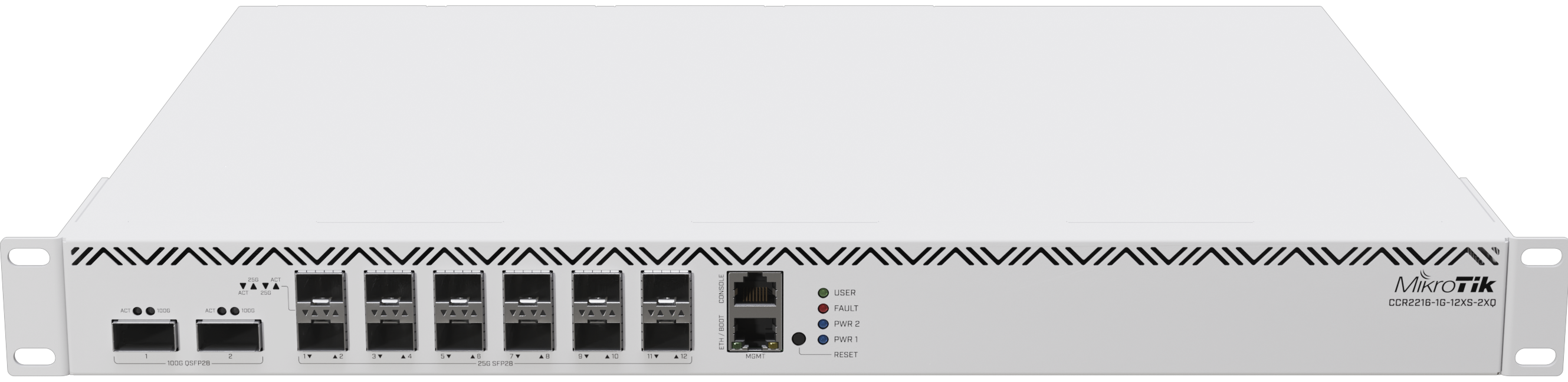
The default configuration
A new home or office MikroTik is not empty. Out of the box:
| Port | Out of the box |
|---|---|
ether1 |
WAN: the way to the Internet. It asks for an address by DHCP (it is a DHCP client) and is protected by a firewall. |
ether2 … last port, Wi-Fi |
LAN: joined together like a switch (a bridge). The router is 192.168.88.1/24 here and runs a DHCP server and a DNS helper for whoever plugs in. |
| User | admin. The password is printed on the sticker of the device (older devices: empty). RouterOS v7 makes you choose a new one at the first login. |
flowchart LR
    WALL(["Wall socket<br>school network / Internet"]) ---|"ether1 · WAN<br>DHCP client + firewall"| R["<b>MikroTik</b><br>RouterOS v7"]
    R ---|"bridge: ether2 … last<br>192.168.88.1/24<br>DHCP server + DNS"| PC["<b>Your group's PC</b><br>gets 192.168.88.x"]
This is the "four devices in one box" from Networks: router, switch, access point and DHCP/DNS server.
Rule of the day, and of the whole unit
Only ether1 ever goes to the wall socket. If you plug a LAN port of your router into the classroom network, your DHCP server starts answering the whole school. You know the name for that from DHCP and DNS: a rogue DHCP server.
Careful: 192.168.88.1 is not a public address
It is the default LAN address, a private one (RFC 1918). Every new MikroTik has the same one, each in its own separate network.
Three doors into the same rooms
| Door | What it is | Good for |
|---|---|---|
| WebFig | A web page served by the router: http://192.168.88.1 in any browser |
No program to install. Includes Quick Set, a one-page wizard. |
| WinBox | MikroTik's own program (Windows, macOS, Linux). Its Neighbors tab finds routers on your cable and can connect by MAC address. | Works even when the router has no IP address: after a reset without defaults, or after you broke the addressing. |
| CLI | The command line: by SSH (ssh admin@192.168.88.1), in WinBox's New Terminal, or on the console |
Exact, fast, can be copied into a report and automated. What professionals document. |
The three doors open the same rooms. Every WinBox menu (IP → Addresses) is a path in the CLI (/ip address). A change made through one door shows in the others at once: it is one configuration, three ways of looking at it.
WinBox by MAC is not magic
It is the link layer from Ethernet, MAC addresses and switching. Your PC and the router are on the same cable, so frames reach the router's MAC without any IP. That is also why it does not work across another router.
Getting in: the group's router
Practical 3.3 has two parts at once. In Part A, the group works on its real router: one driver at the keyboard, the other two check the sheet, and the driver changes at every step. In Part B, whoever is not driving works alone on their own CHR.
Cable the group's PC to ether2 (not ether1) and look at what it received:
The PC now has a 192.168.88.x/24 address and default via 192.168.88.1. Nobody typed them: the router's DHCP server did. While your PC is cabled to the router, it is off the school network.
Then try the three doors, in this order:
- WebFig: open
http://192.168.88.1, useradmin, the password from the sticker. RouterOS asks you for a new password. Open Quick Set and look at the WAN half and the LAN half. Apply nothing. - WinBox: open Neighbors. You see one line with the router's MAC, its address, its identity (its name) and its version. Click the MAC address, then Connect. Look at Interfaces (a running port shows
R), IP → Addresses and IP → DHCP Server → Leases, where you find your own PC. - CLI:
ssh admin@192.168.88.1from the cabled PC.
If Neighbors is empty, check you chose the right network card and that the PC is cabled to a LAN port, then press Refresh.
Moving in the CLI
The CLI is a tree of menus, like folders. A path starts with /; .. goes one level up.
| You type | It does |
|---|---|
/interface print |
Lists the items of a menu |
/ip address then print |
Goes into a menu, then the same command is shorter |
.. |
One level up |
| Tab | Completes a word, like in Bash |
| F1 | Lists what you can type here |
set, add, remove |
Change, create, delete an item |
/export |
Prints the whole configuration as a list of commands |
On the group's router, the CLI part looks like this (G = your group number):
/system identity set name=gG-router         # with your group number
/ip address print
/ip dhcp-server lease print
/system resource print
The identity is the router's name. The prompt changes at once to [admin@gG-router] >. /ip address print shows 192.168.88.1/24 on the bridge, the lease list shows your PC, and /system resource print shows the version, uptime, CPU and memory.
Note that /system identity set name=… needs no item number, because there is only one identity. /ip address set does: use the number shown by print.
Your own router: a CHR in containerlab
Part B runs on your own PC, with the lab file ros.clab.yml: one CHR called r1, cabled to a Linux PC called pc1.
containerlab deploy -t ros.clab.yml          # the router needs 1-2 minutes to boot
ssh admin@clab-ros-r1                        # password: admin
You see the prompt [admin@r1] >. /interface print shows ether1 (containerlab's management cable) and ether2 (the lab cable to pc1). If ssh is refused in the first minutes, the router is still booting: docker logs -f clab-ros-r1 shows when it is ready.
Give it your group's router address, and give pc1 an address in the same network:
docker exec -it clab-ros-pc1 bash            # second terminal
ip addr add 10.G.0.11/24 dev eth1
ping -c 2 10.G.0.1
The ping answers. For the first time in the unit, your group's router address 10.G.0.1 exists. If it does not answer: did you add the address to ether1 by mistake, or forget /24 on either side?
Users, Safe Mode and reset
Users and groups
One rule from system administration (you will meet it properly in Unit 5): give each person only the power they need, so nobody works as the shared admin. RouterOS has users in groups with rights:
| Group | Can |
|---|---|
full |
Everything |
write |
Configure, but not manage users |
read |
Look only |
Good practice, from the MikroTik manual: create your own user with a strong password, and disable or remove the default admin.
On your CHR, create the intern pau in the group read, log in as pau, and try:
The first works; the second is refused for lack of permissions. The intern can look, but not touch.
Safe Mode
The classic accident: you change the address of the very port you are connected through, and you are locked out. The router may be in another building.
Safe Mode undoes everything you changed since you turned it on, if your session dies.
In the CLI press Ctrl+X (or F4): the prompt shows <SAFE>. Press Ctrl+X again to keep the changes. WinBox has the same as a button.
Save and reset
Before you reset, save what you did. /export file=name writes the configuration as a text file of commands; /export alone prints it. Passwords are never exported.
| Way back to the beginning | How |
|---|---|
| Command | /system reset-configuration: it asks for confirmation, reboots and loads the default configuration again. With no-defaults=yes it comes back completely empty: no address, only WinBox by MAC gets in. |
| Button | When you cannot get in at all: unplug the power, hold the reset button, plug the power in, release when the LED starts flashing. |
After the reset of the group's router, the PC gets a 192.168.88.x address again, the identity is the default one, your users are gone and admin has the sticker password. Leave it like that: the next sessions start from there.
Careful: reset does not erase RouterOS
Only the configuration goes back to factory defaults. RouterOS itself, its version and its licence stay.
Clean up the CHR with containerlab destroy -t ros.clab.yml --cleanup. Hand in practical-3.3-surname.md on Google Classroom: the /export of your CHR, the answers of the sheet, and three lines on which door you prefer and why.
Key takeaways
- A router is a computer; RouterOS (MikroTik, Latvia, 1996) is its operating system. The CHR is RouterOS in a virtual machine.
- Default configuration:
ether1= WAN (DHCP client, firewall); the other ports = LAN bridge at192.168.88.1/24with a DHCP server. Onlyether1goes to the wall. - Three doors, one configuration: WebFig (browser), WinBox (also by MAC address, with no IP), CLI (SSH).
- CLI: menus with
/and..,print,set,add, Tab, F1./exportprints the configuration as commands. - Users in groups
full,write,read; never work as the sharedadmin. - Safe Mode (Ctrl+X) undoes changes if you lose the session; reset restores only the configuration.
Quick check
1. What is the default LAN address of a MikroTik with its default configuration?
- 192.168.1.1
- 192.168.88.1
- 10.0.0.1
- 192.168.0.254
The LAN bridge of a MikroTik out of the box is 192.168.88.1/24, with a DHCP server for whoever plugs in.
2. WinBox can open a router that has no IP address. What does it connect by?
- Its DNS name
- DHCP
- Its MAC address
- Bluetooth
PC and router are on the same cable, so WinBox reaches the router's MAC address at the link layer, without any IP. It does not work across another router.
3. Which command prints the whole configuration as commands?
- /export
- /print all
- /system show
- /backup
/export prints the configuration as a list of commands you can read, paste into a report or apply again. /export file=name saves it to a file.
4. What does Safe Mode do?
- It encrypts the session
- It blocks the other users
- It makes a backup every minute
- It undoes your changes if your session is lost
With Safe Mode on (Ctrl+X, prompt <SAFE>), if your connection dies RouterOS reverts everything since you turned it on. It saves you from locking yourself out.
5. Why must only ether1 ever be plugged into the classroom wall socket?
- Because the other ports are too slow for the school network
- Because the LAN ports run a DHCP server that would answer the whole school
- Because ether1 is the only port with a firewall that blocks the school
- Because the other ports only work with Wi-Fi devices
ether1 is the WAN port, a DHCP client. The other ports form the LAN bridge with a DHCP server: plugged into the wall, it becomes a rogue DHCP server for the school.
6. Logged in as pau, in the group read, you type /system identity set name=hacked. What happens?
- The identity changes, because every user can rename the router
- The command is refused, because read users can only look
- The router asks for the admin password and then changes it
- The session is closed and Safe Mode undoes it
The group read can print everything but change nothing. Rights belong to the group, as with Linux groups (Unit 5).
7. After /system reset-configuration on the group's router, select the two that are true.
- RouterOS and its version are still installed
- The users you created are gone
- The router must be reinstalled before it can be used
- The router keeps the identity you gave it
A reset restores only the configuration to factory defaults: default identity, default admin, 192.168.88.1 on the LAN. The operating system stays.
Next: the router is ready and reset. Now each group makes and tests the cables of its own LAN, in Cabling a LAN.