Storage
Exercise storage-boot-annex.pdf · PDF
Turn off your phone. Turn it back on. Your photos are still there — but everything that was open is gone. Where did the photos wait while the power was off?
In Computer architecture we called it the pantry: the huge, slow, permanent archive behind the countertop (RAM). This page opens the pantry door. When you buy a laptop, the spec sheet says "512 GB SSD" or "1 TB HDD" — and the difference between those two words decides whether your computer starts in 10 seconds or in a minute.
What you will learn
- What storage is and why it must be non-volatile
- How a hard disk drive (HDD) works: platters, heads and RPM
- How an SSD stores bits with no moving parts, using flash memory
- The difference between a SATA SSD and an NVMe SSD, with real speeds
- Why a "1 TB" disk shows only ~931 GB in Windows — nothing is missing
- How to check which kind of disk your own computer has
What is storage?
Storage is the part of the computer that keeps data when the power is off.
RAM forgets everything at power off: it is volatile. Storage is non-volatile: your files, your apps and the operating system itself live there, and they survive until you delete them.
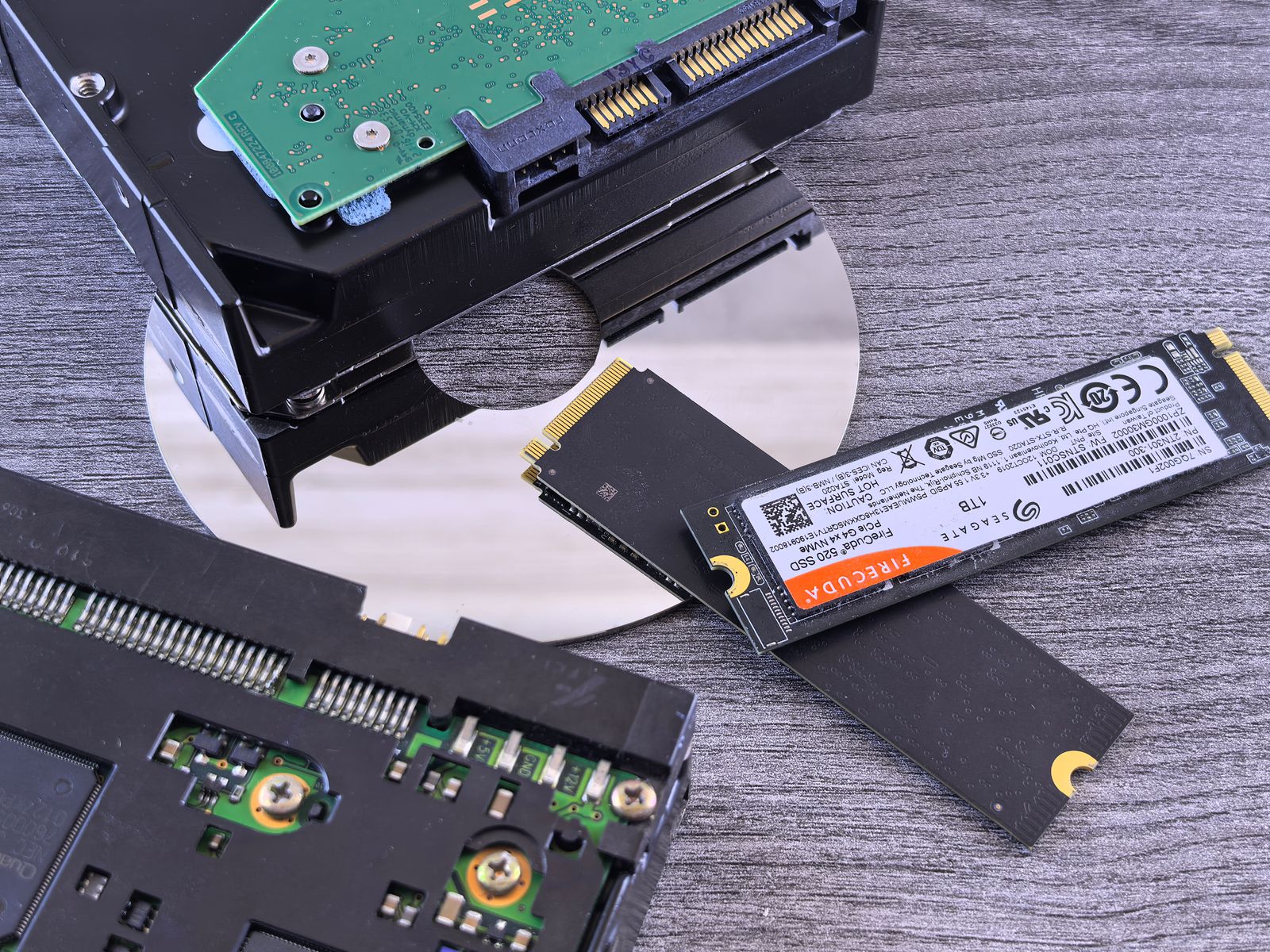
In the kitchen: the countertop (RAM) gets wiped every night. The pantry (storage) keeps its shelves full. Before the chef (CPU) can cook with an ingredient, someone has to bring it from the pantry to the countertop — that is what "loading" or "opening" a file means.
Today, three families of pantry fill almost every computer:
| HDD | SATA SSD | NVMe SSD | |
|---|---|---|---|
| How it stores bits | Magnetism on spinning platters | Electric charge in flash chips | Electric charge in flash chips |
| Moving parts | Yes | No | No |
| Connects through | SATA cable | SATA cable | PCI Express (usually an M.2 slot) |
| Typical sequential speed | ~100–250 MB/s | ~550 MB/s | ~3,500–14,000 MB/s |
| Cost per TB | Cheapest | Medium | Medium, dropping |
| Where you find it | NAS, backup disks, data centres | Older laptops, upgrades | Every new laptop and phone-class device |
Let's open each one.
The hard disk drive (HDD)
A hard disk drive (HDD) stores bits as tiny magnetised spots on spinning metal or glass disks.
A little history
In 1956 IBM shipped the first commercial hard disk, the IBM 350, part of the RAMAC computer. It had fifty 24-inch platters, weighed about a ton, and stored about 3.75 MB — less than one song in MP3. Today a hard disk that fits in your hand stores more than 20 TB: over five million times more.
How it works
Picture a record player, made absurdly precise:
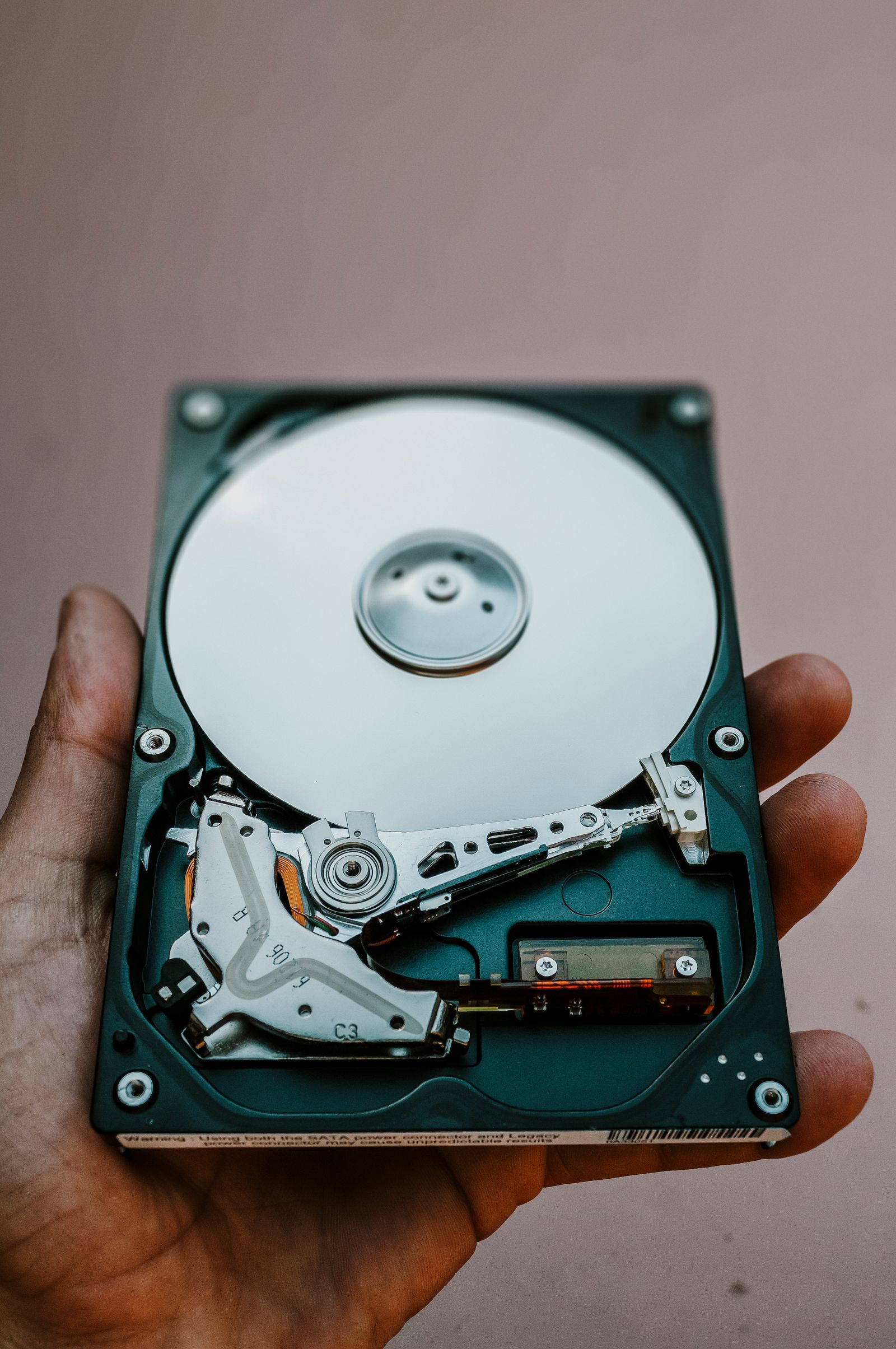
- Platters — rigid disks coated with a magnetic material. Each tiny area is magnetised in one direction or the other: that is a 1 or a 0.
- Spindle motor — spins the platters at a fixed speed, measured in RPM (revolutions per minute): usually 5,400 or 7,200 RPM in desktops and laptops, up to 15,000 in some servers.
- Read/write head — one per platter surface, at the end of an arm that swings across the disk. The head does not touch the platter: it flies on a cushion of air a few nanometres above it. A dust particle is hundreds of times bigger than that gap.
flowchart LR
    CPU["<b>CPU</b><br>the chef asks for<br>a file"] -->|"SATA cable"| CTRL["<b>Controller</b><br>the disk's own<br>small computer"]
    CTRL --> ARM["<b>Arm + head</b><br>swings to the<br>right track"]
    ARM -->|"wait for the sector<br>to spin under the head"| PLAT["<b>Platters</b><br>magnetised spots:<br>the 1s and 0s"]
To read one piece of data, the arm has to move to the right track (seek) and then wait until the right spot spins underneath (rotational latency). Together that takes around 10 ms. That sounds fast — but remember the scale from Computer architecture: if one CPU cycle were one second, an HDD seek would last about a year.
Why your old laptop took forever to start
Starting Windows means reading thousands of small files scattered across the platters. Every one of them costs a seek. Replacing an old laptop's HDD with an SSD is still the single cheapest upgrade that makes it feel new.
Mechanical also means fragile: dropping a laptop while its HDD is spinning can make the head crash into the platter. That is a head crash, and the data on that spot is gone.
The solid-state drive (SSD)
A solid-state drive (SSD) stores bits as electric charges trapped inside chips. Nothing moves — that is what "solid state" means.
Flash memory
The chips inside an SSD (and inside your USB stick, your phone and your SD card) are flash memory. It was invented by Fujio Masuoka at Toshiba around 1980; the kind used in SSDs, NAND flash, was presented in 1987. The name came from a colleague: erasing a whole block at once reminded him of a camera flash.
The intuition: flash memory is a grid of billions of microscopic "buckets", called cells. Each cell can trap electrons behind an insulating wall, and they stay trapped with no power. Full or empty bucket = 1 or 0. Modern cells measure several levels of "fullness" to store more than one bit each:
| Cell type | Bits per cell | Trade-off |
|---|---|---|
| SLC | 1 | Fastest, most durable, most expensive |
| MLC | 2 | |
| TLC | 3 | The usual choice in consumer SSDs |
| QLC | 4 | Cheapest per TB, slowest and least durable |
Because there is no arm to move, any piece of data is equally close. An SSD answers in about 0.1 ms — around a hundred times quicker than an HDD's seek.
Careful: SSDs wear out (slowly)
Every time a cell is erased and rewritten, its insulating wall is damaged a little. After thousands of writes it stops holding charge. SSDs spread writes across all cells to delay this, and the manufacturer promises a total amount of writing, called TBW (terabytes written). For a normal student's laptop, that limit takes many years to reach — but it is why an SSD is not a forever-archive.
SATA vs NVMe: same chips, different corridor
Here is the trap: two SSDs with the same flash chips can differ in speed by ten times or more. The difference is the corridor — the interface that connects them to the rest of the computer.
- SATA (Serial ATA) was designed in the early 2000s for hard disks. The modern version, SATA III, carries 6 Gbit/s; after overhead, that is about 550–600 MB/s of real data. An SSD plugged into SATA is a race car stuck on a country road.
- NVMe (Non-Volatile Memory Express, version 1.0 in 2011) is a protocol designed from scratch for flash. It skips SATA and talks to the CPU over PCI Express, the same fast lanes the graphics card uses. Most NVMe drives are small sticks plugged into an M.2 slot on the motherboard.
| Interface | Realistic top speed |
|---|---|
| SATA III | ~550 MB/s |
| NVMe on PCIe 3.0 ×4 | ~3,500 MB/s |
| NVMe on PCIe 4.0 ×4 | ~7,000 MB/s |
| NVMe on PCIe 5.0 ×4 | ~14,000 MB/s |
M.2 is a shape, not a speed
M.2 only describes the physical slot and the size of the stick. Some M.2 sticks speak NVMe; older ones speak SATA and are stuck at ~550 MB/s. Always check the spec sheet for the word NVMe.
"My 1 TB disk shows 931 GB!"
You buy a 1 TB disk, plug it in, and Windows says 931 GB. Did the shop rob you?
No. You met this trap in Binary: there are two rulers.
- The manufacturer uses the decimal ruler: 1 TB = 10¹² bytes = 1,000,000,000,000 bytes.
- Windows uses the binary ruler (2³⁰ bytes per "GB", which is really a GiB) but still writes "GB".
Same number of bytes, different unit. Linux and macOS tools often print the unit correctly (931.5G in lsblk means GiB).
Check your own pantry
On Linux, one command shows your disks and whether they spin:
ROTA 1= rotational: it spins, so it is an HDD.ROTA 0= no moving parts: an SSD.TRAN= the corridor:sata,nvme,usb...
The nvme0n1 above was sold as "512 GB": 512 × 10⁹ bytes ≈ 476.9 GiB. The same trap, caught live.
On Windows, open Task Manager → Performance: each disk shows its type (SSD or HDD).
Key takeaways
- Storage is non-volatile: it keeps data with the power off. It is the kitchen's pantry; RAM is the countertop.
- An HDD stores bits magnetically on spinning platters; a flying head must seek, which costs ~10 ms per access.
- An SSD stores bits as trapped charges in NAND flash cells: no moving parts, ~100 times faster access, but cells wear out slowly (TBW).
- SATA caps any disk at ~550 MB/s; NVMe uses PCI Express and reaches thousands of MB/s. M.2 is only the shape.
- "1 TB" shows as ~931 GB because the box uses decimal units and Windows uses binary ones.
Quick check
1. Why does storage have to be non-volatile?
- So that files survive when the power is turned off
- So that the CPU can read it faster than RAM
- So that it uses less electricity than RAM
- So that it can be connected with a SATA cable
Non-volatile means the data stays when the power goes away. RAM is volatile, so without non-volatile storage you would lose every file and reinstall the operating system at every power-on.
2. What makes reading a random file slow on a hard disk drive?
- The arm must move and the platter must spin to the data
- The flash cells must be erased before each read
- The data must first be decompressed by the CPU
- The SATA cable only carries one bit per second
An HDD is mechanical: the head must seek to the right track and wait for the sector to rotate under it. That costs about 10 ms per access — an eternity for a CPU.
3. How does an SSD keep bits without power?
- Electrons stay trapped inside flash memory cells
- A small battery keeps the RAM chips powered
- Tiny magnets on a spinning platter hold them
- The bits are copied to the cloud at shutdown
NAND flash cells trap electrons behind an insulating wall. The charge stays with no power, and full or empty (or several levels in between) encodes the bits.
4. Two SSDs use identical flash chips. One reads at 550 MB/s, the other at 7,000 MB/s. What is the most likely reason?
- The first one uses SATA and the second one NVMe
- The first one is an M.2 stick and the second is not
- The first one has more capacity than the second
- The first one spins at a lower RPM than the second
The chips are not the bottleneck; the interface is. SATA tops out around 550 MB/s, while NVMe talks over PCI Express lanes. M.2 is only a physical shape, and SSDs do not spin.
5. A friend's new “2 TB” disk shows about 1.8 TB in Windows. What happened?
- The box counts in decimal units and Windows in binary units
- Windows keeps 10% of every disk hidden for itself
- The disk is faulty and some sectors are broken
- The shop sold a smaller disk than the one advertised
2 × 10¹² bytes ÷ 2⁴⁰ ≈ 1.82 TiB. The bytes are all there; Windows just measures with the binary ruler and still writes "GB/TB".
6. On a Linux machine, lsblk shows a disk with ROTA 1 and TRAN sata. Select the two that are true.
- It has spinning platters and moving heads
- It is limited to around 550 MB/s by its interface
- It is an NVMe SSD plugged into an M.2 slot
- It stores its bits as charges in flash memory cells
ROTA 1 means rotational, so it is an HDD: platters and a flying head. Its corridor is SATA, capped at about 550 MB/s — and a hard disk rarely reaches even half of that.
Now you know where data sleeps. Next: what happens in the seconds between pressing the power button and seeing the login screen — the boot process.