Networks
Network types Network components Practical 1.4 PDF
You send a WhatsApp to the friend sitting right next to you. It arrives in less than a second. But here is the surprise: that message probably did not jump the one metre between your phones. It went out through Wi-Fi or 4G, crossed cables, routers and maybe an undersea fibre, reached a WhatsApp server in a data centre, and came all the way back. How does it find the way?
That is what a network is for. Every game you play online, every video you stream, every photo you back up to the cloud depends on it. And this very classroom is a network you can draw on the whiteboard.
What you will learn
- Define a network and say what it needs to exist
- Classify networks by scope (PAN, LAN, MAN, WAN) and by topology (bus, star, ring, mesh)
- Name the components of a network — NIC, switch, router, access point, modem/ONT — and what each one does
- Tell apart wired and wireless communication systems, and pick the right cable
- Read and draw a physical and a logical network map
- Why the Wi-Fi box at home is really four devices in one
What is a network?
A network is two or more devices connected so they can exchange information.
Remember the three verbs from What is a computer?: store, transform, transfer. A network is all about the third one — moving bits from one computer to another.
Any network, from two phones sharing a photo to the whole Internet, needs the same three things:
| Ingredient | What it is | Example |
|---|---|---|
| Devices | The computers that send and receive | Your phone, a laptop, a server |
| Medium | The path the bits travel through | A cable, radio waves, light in a fibre |
| Rules | An agreement on how to talk | Who speaks first, how a message is split... |
The rules have a name: protocols. Two people who don't share a language cannot talk even if they are in the same room; two computers without a common protocol can't either. You will study protocols in detail — the famous OSI and TCP/IP models — in Unit 3. For now, just remember they exist.
The postal-service analogy (we keep it all page)
A network works like the postal service. Devices are houses, the medium is the streets, and protocols are the rules for writing an envelope: the address goes here, the stamp goes there. Break the rules and your letter goes nowhere.
Types of networks by scope
The first way to classify a network: how far does it reach?
| Type | Stands for | Reach | Example |
|---|---|---|---|
| PAN | Personal Area Network | Around one person: a few metres | Your phone + wireless earbuds + smartwatch |
| LAN | Local Area Network | One building or home | This classroom, your home Wi-Fi |
| MAN | Metropolitan Area Network | A city | A city council linking its libraries and schools |
| WAN | Wide Area Network | Countries, continents | The Internet — the biggest WAN of all |
A LAN that uses radio instead of cables is called a WLAN (Wireless LAN). Your home Wi-Fi is a WLAN.
flowchart LR
    PAN["<b>PAN</b><br>a few metres<br>earbuds, watch"] --> LAN["<b>LAN / WLAN</b><br>one building<br>home, classroom"]
    LAN --> MAN["<b>MAN</b><br>one city<br>city council network"]
    MAN --> WAN["<b>WAN</b><br>the planet<br>the Internet"]
Careful: the Internet is not a special thing
The Internet is simply a WAN made of millions of smaller networks joined together — a network of networks. Your home LAN becomes part of it the moment your router connects to your Internet provider.
Types of networks by topology
The second way to classify a network: what shape does it have? The topology is the way devices are connected to each other.
flowchart TB
    subgraph BUS ["Bus: one shared cable"]
        direction LR
        B1["PC 1"] --- BC["shared cable"] --- B2["PC 2"]
        BC --- B3["PC 3"]
    end
    subgraph STAR ["Star: everyone to a centre"]
        direction LR
        S1["PC 1"] --- SW["<b>Switch</b>"]
        S2["PC 2"] --- SW
        S3["PC 3"] --- SW
    end
    subgraph RING ["Ring: a closed circle"]
        direction LR
        R1["PC 1"] --- R2["PC 2"] --- R3["PC 3"] --- R1
    end
    subgraph MESH ["Mesh: many paths"]
        direction LR
        M1["Node 1"] --- M2["Node 2"] --- M3["Node 3"]
        M1 --- M3
end| Topology | How it works | Good | Bad | Where today |
|---|---|---|---|---|
| Bus | All devices hang off one shared cable | Cheap, little cable | One cut breaks everything; only one can talk at a time | Historic: the first Ethernet (1973) |
| Star | Every device has its own cable to a central box | One broken cable only affects one device; easy to add devices | If the centre fails, everyone is down | Almost every LAN: home, school, office |
| Ring | Each device connects to the next, forming a circle | Orderly, predictable | One break can stop the ring | Some old and industrial networks |
| Mesh | Devices connect to several others | Many paths: if one fails, traffic goes around | Lots of links, expensive | The Internet's backbone, mesh Wi-Fi at home |
This classroom is a star: every computer has its own cable going to a central switch.
Components of a network
Now open the box. These are the pieces you will find in almost every network.
The network card and the MAC address
A NIC (Network Interface Card) is the part of a device that connects it to a network — the door of the house.
Every laptop, phone and console has at least one: an Ethernet port, a Wi-Fi chip, or both. Each NIC comes from the factory with a unique MAC address (Media Access Control), a 48-bit number written in hexadecimal:
- 48 bits = 6 bytes = 12 hex digits. Yes, the hex from the Binary page pays off here.
- The first 24 bits identify the manufacturer (Apple, Intel, MikroTik...); the last 24 bits are chosen by the manufacturer to tell its own devices apart.
In the postal analogy, the MAC address is the name on the door: it identifies who lives in the house. It does not say where the house is in the world — that is the job of the IP address, which you will meet in Unit 3.
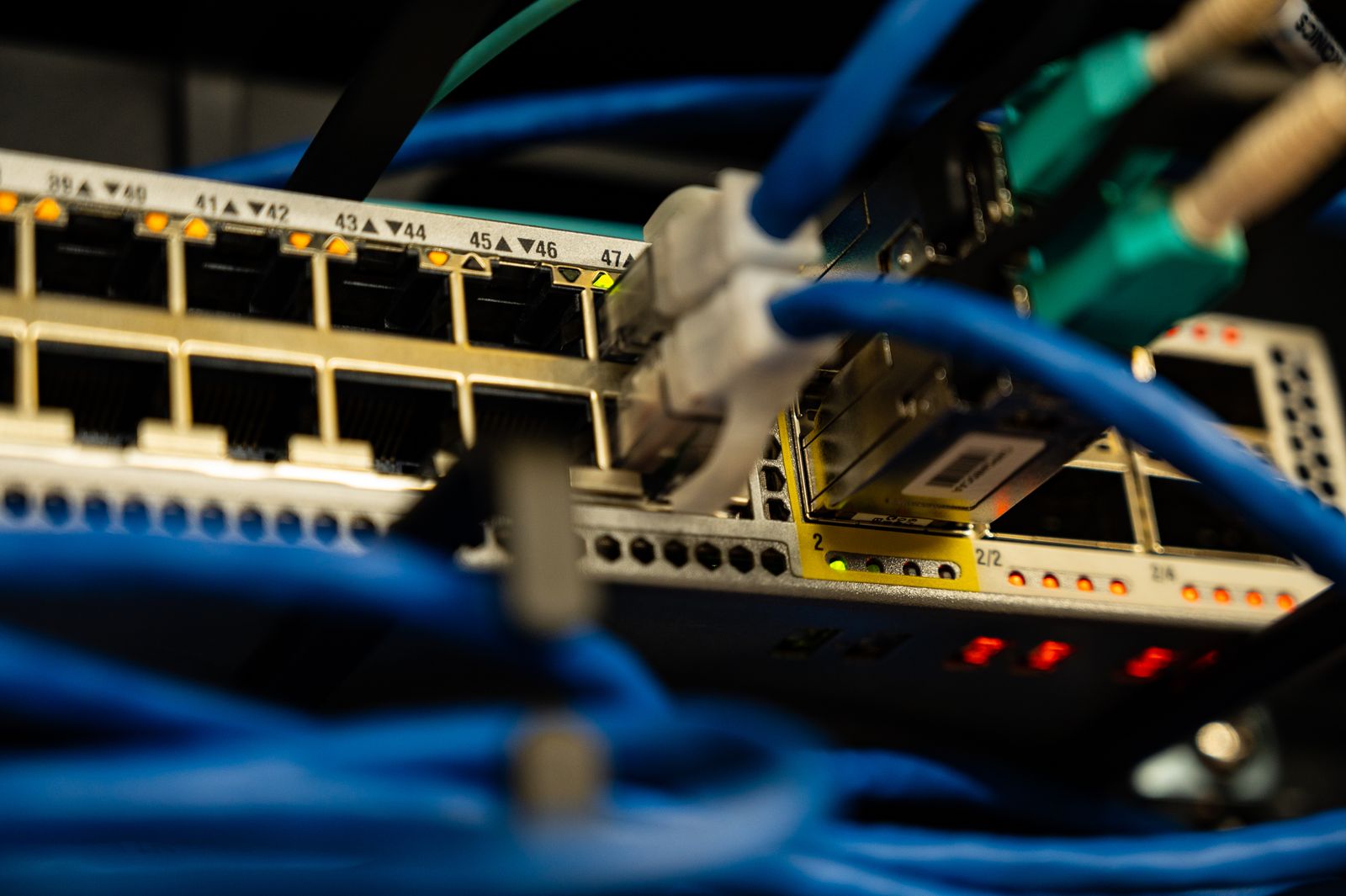
Switch
A switch connects devices inside the same LAN and delivers each message only to the device it is for.
It is the concierge of a building: it knows which flat each name lives in, so it hands every letter to the right door instead of shouting it through the whole building. It learns this by looking at MAC addresses. The switch is the centre of a star topology.
Router
A router connects different networks together and chooses the path a message should take between them.
It is the post office: when a letter is for another town, the concierge gives it to the post office, which decides which road to send it down. Your home LAN and the Internet are different networks; the router sits between them. The school uses MikroTik routers like this one:
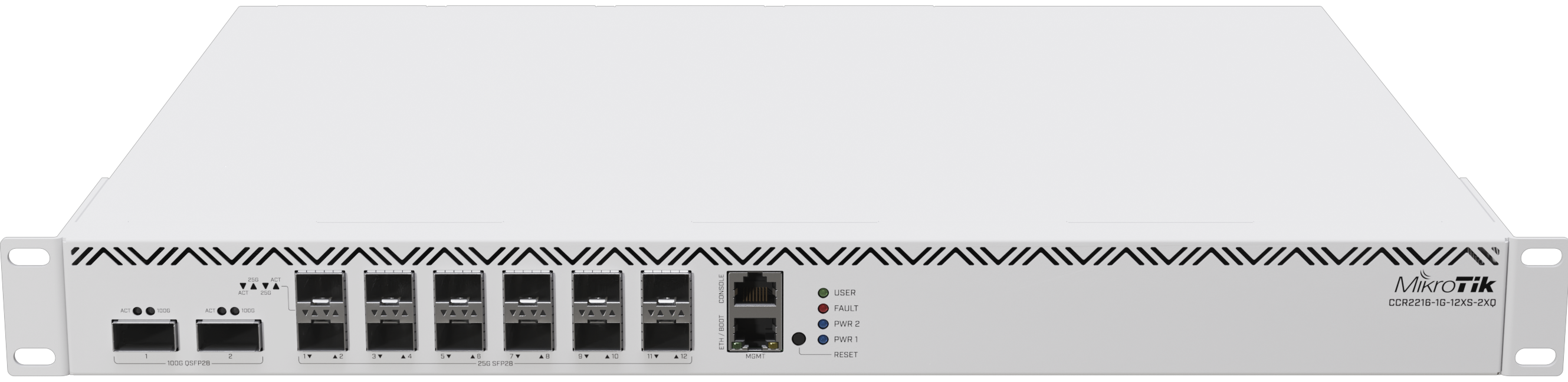
Remember from What is a computer?: a router has a CPU, memory and I/O. It is a computer whose only job is to forward information.
Access point
An access point (AP) lets wireless devices join a wired LAN, using radio instead of a cable.
It is a mailbox you can reach without a street: devices near it drop their letters through the air, and it passes them onto the cable network.
Modem and ONT
Your Internet provider's line does not "speak" the same language as your LAN. A translator sits at the edge:
- A modem (modulator–demodulator) converts your bits into the signal the provider's line uses — for example over an old copper phone line.
- An ONT (Optical Network Terminal) does the same for fibre: it turns pulses of light into electrical signals and back. If you have fibre at home, the small box where the fibre enters is the ONT.
The box at home is four devices in one
The "Wi-Fi router" your provider gave you usually contains a router, a small switch (the yellow Ethernet ports on the back), an access point (the Wi-Fi) and often the ONT or modem too. In an office or in this school, each job usually has its own separate box.
Summary
| Component | Job | In the post |
|---|---|---|
| NIC | Connects one device to the network | The door of the house |
| MAC address | Unique hardware identifier of a NIC | The name on the door |
| Switch | Delivers messages inside one LAN | The building's concierge |
| Router | Joins different networks, picks the path | The post office |
| Access point | Joins wireless devices to the LAN | A mailbox reachable without a street |
| Modem / ONT | Translates the provider's line (copper / fibre) | The border crossing out of town |
The medium: cables and connectors
Twisted pair
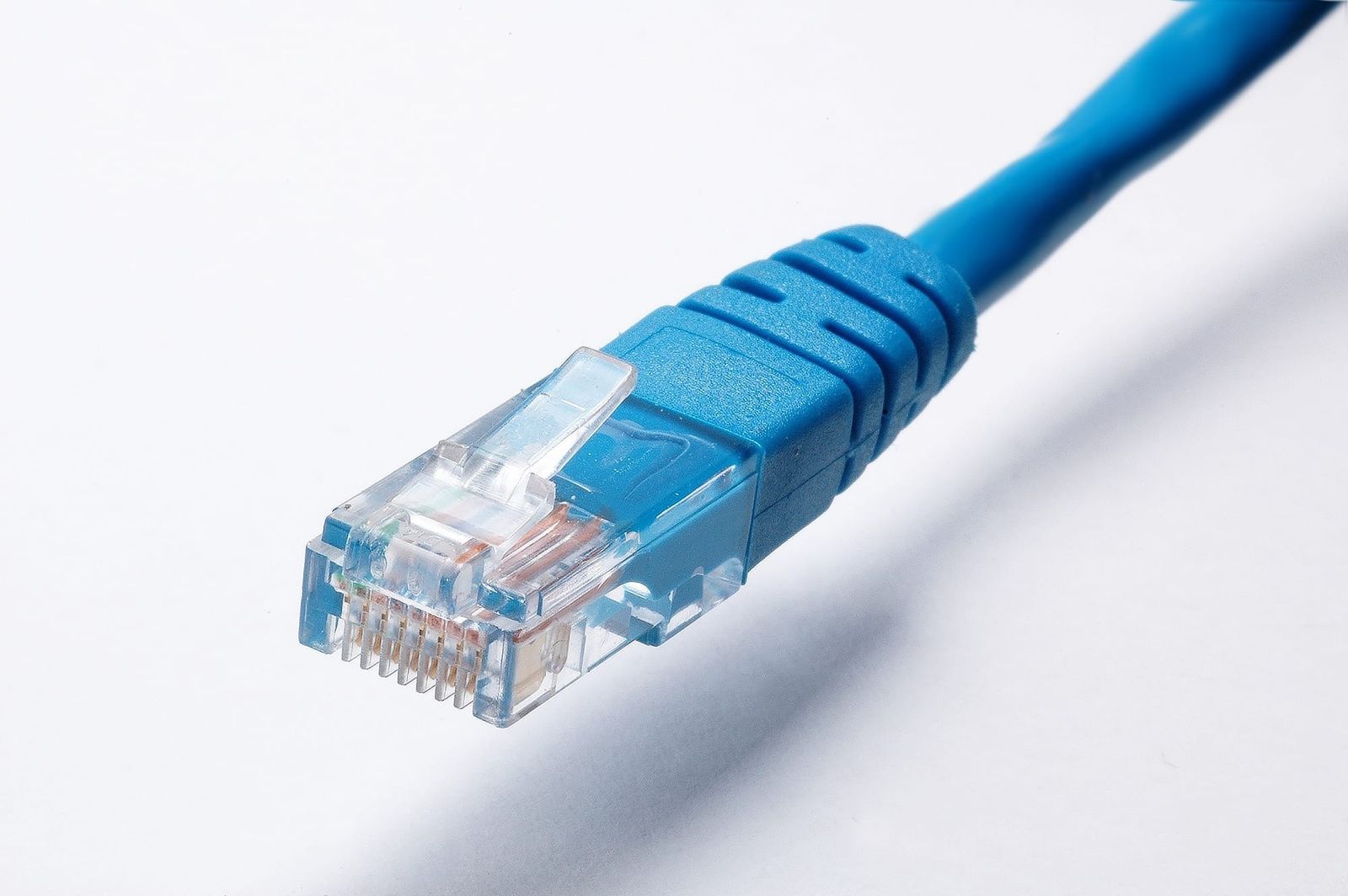
Twisted pair cable is the typical network cable: 8 copper wires twisted in 4 pairs, ending in an RJ45 connector.
The wires are twisted because each twist cancels part of the electrical noise from neighbouring wires and from the environment. Cables are graded by category (Cat): a higher category means better protection against noise and more speed.
| Category | Typical speed | Maximum length | Where you find it |
|---|---|---|---|
| Cat5e | 1 Gbps | 100 m | Older homes and offices |
| Cat6 | 1 Gbps (10 Gbps up to 55 m) | 100 m | Most new installations |
| Cat6a | 10 Gbps | 100 m | Servers, new offices |
Notice the 100 m limit: past that, the signal gets too weak and noisy for copper. For longer runs you need something else.
Careful: Gbps, not GB/s
Speeds are in gigabits per second. 1 Gbps ÷ 8 = 125 MB/s at most — the ÷8 trap from the Binary page.
Fibre optic
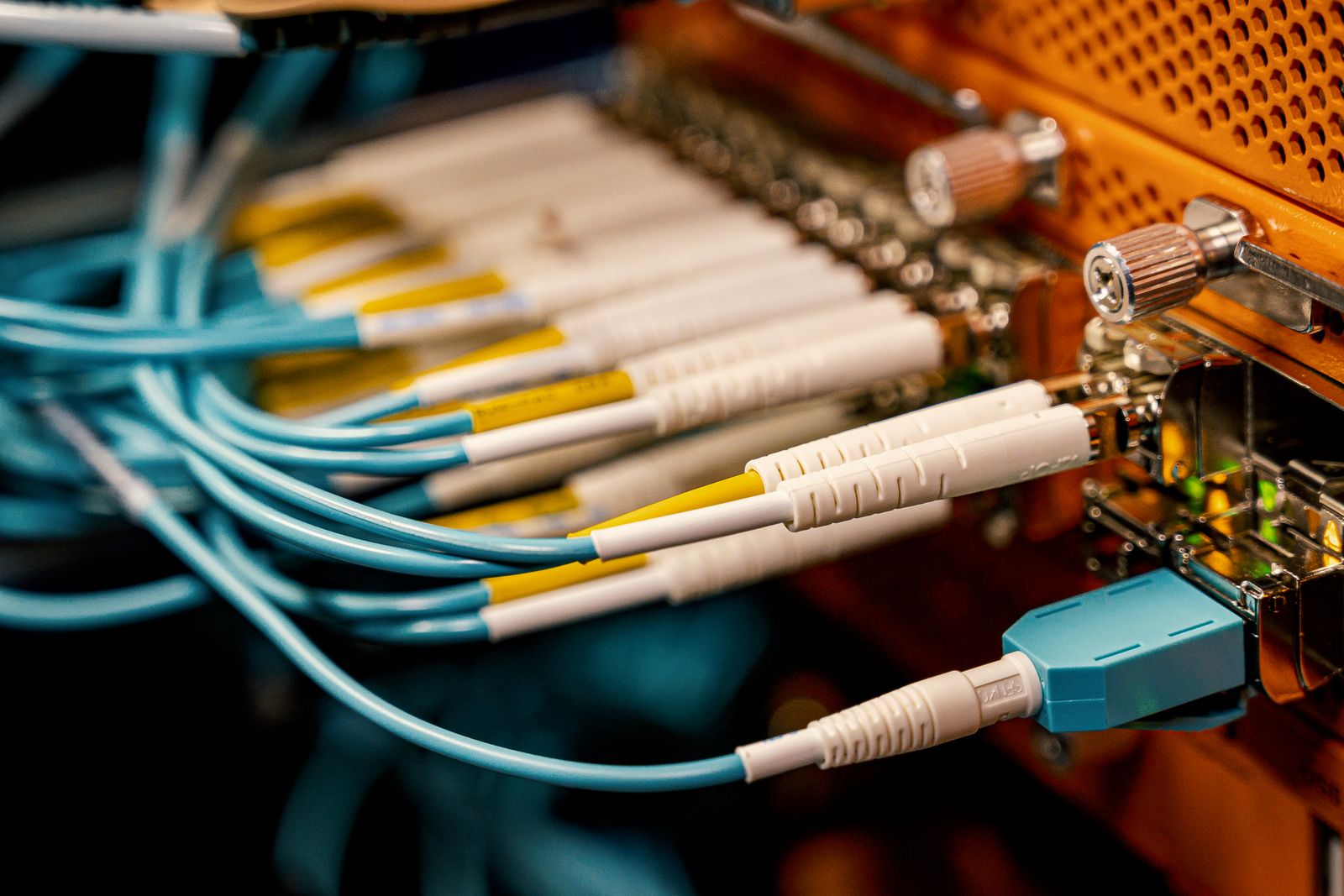
Fibre optic cable carries bits as pulses of light inside a glass thread thinner than a hair.
- Much longer distances than copper — kilometres, even across oceans in undersea cables.
- Immune to electrical noise, because light is not affected by it.
- More fragile and more expensive to install. It connects buildings, cities and continents; in homes it usually stops at the ONT.
Wireless: the medium is the air
Radio waves need no cable at all — the air is the medium. Convenient, but the signal weakens with distance and walls, and anyone nearby can pick it up (which is why Wi-Fi needs a password).
Communication systems: wired and wireless
The technologies you use every day, in one table:
| System | Wired or wireless | Network type | Typical reach | You use it for |
|---|---|---|---|---|
| Ethernet | Wired (twisted pair, fibre) | LAN | 100 m per copper cable | Classroom PCs, consoles, servers |
| Wi-Fi | Wireless (radio) | WLAN | Tens of metres | Laptops and phones at home or school |
| Bluetooth | Wireless (radio) | PAN | About 10 m (most phones and earbuds) | Earbuds, smartwatch, game controllers |
| 4G / 5G | Wireless (mobile network) | WAN | Kilometres per antenna | Your phone's data outside home |
A little history for each name:
- Ethernet was invented by Bob Metcalfe at Xerox PARC. His memo describing it is dated 22 May 1973. It is still the standard for wired LANs today.
- Wi-Fi is the brand name for the IEEE 802.11 standard, first published in 1997. The name "Wi-Fi" came in 1999.
- Bluetooth is named after Harald "Bluetooth" Gormsson, a 10th-century Viking king who united Denmark and Norway — just like the technology unites devices. Its logo mixes his initials in runes: ᚼ and ᛒ.
Wired or wireless?
Wireless is convenient; wired is faster, more stable and more secure. That is why servers, the school's PCs and serious gamers use a cable, while phones use Wi-Fi.
Network maps: physical and logical
When a network breaks, a technician's first question is: "Where is the map?" There are two kinds:
- A physical map shows where things really are: which room, which wall socket, which cable goes to which port.
- A logical map shows how information flows: which devices talk to which, grouped by network, ignoring where they physically sit.
Here is the same small classroom drawn both ways.
flowchart TB
    subgraph RACK ["Rack in the corridor"]
        ROUTER["<b>MikroTik router</b>"]
        SWITCH["<b>Switch</b><br>24 ports"]
        ROUTER ---|"Cat6, 2 m"| SWITCH
    end
    subgraph ROOM ["Classroom 0.12"]
        direction LR
        WALL["<b>Wall sockets</b><br>patch panel A1–A20"]
        PC1["PC row 1"]
        PC2["PC row 2"]
        AP["<b>Access point</b><br>on the ceiling"]
    end
    SWITCH ---|"Cat6 runs,<br>~25 m inside the wall"| WALL
    WALL ---|"patch cable"| PC1
    WALL ---|"patch cable"| PC2
    WALL ---|"patch cable"| AP
    ROUTER ---|"fibre to the ISP"| ISP(["Internet"])
flowchart LR
subgraph LAN ["Classroom LAN"]
direction TB
PCS["<b>Student PCs</b>"]
LAPTOPS["<b>Wi-Fi laptops<br>and phones</b>"]
TEACHER["<b>Teacher PC</b>"]
end
LAN <-->|"all traffic out<br>of the LAN"| ROUTER["<b>Router</b><br>the post office"]
ROUTER <-->|"WAN"| NET(["<b>Internet</b>"])Notice what each one hides:
- The physical map shows cable lengths and the patch panel, but says nothing about which devices can talk to each other.
- The logical map ignores cables completely: the access point and the switch disappear, because from the point of view of the information all these devices are simply "in the same LAN".
Real logical maps also show addresses and sub-networks — more on that in Unit 3.
Key takeaways
- A network is two or more devices exchanging information: it needs devices, a medium and common rules called protocols.
- By scope: PAN (a person), LAN/WLAN (a building), MAN (a city), WAN (the planet — the Internet is the biggest one).
- By topology: bus, star, ring, mesh. Almost every LAN today is a star around a switch.
- The NIC connects a device and carries a unique MAC address; the switch delivers inside a LAN; the router joins networks; the access point adds wireless; the modem/ONT translates the provider's line.
- Twisted pair (Cat5e/Cat6/Cat6a, RJ45, max 100 m) for short runs, fibre for long ones, radio for wireless (Wi-Fi, Bluetooth, 4G/5G).
- A physical map shows where things are; a logical map shows how information flows.
Quick check
1. Your wireless earbuds are connected to your phone. What type of network is that?
- A PAN
- A LAN
- A MAN
- A WAN
It reaches only a few metres around one person, so it is a PAN (Personal Area Network). Bluetooth is the typical technology for it.
2. Which device connects your home network to the Internet and chooses the path messages take between networks?
- The router
- The switch
- The access point
- The network card
The router joins different networks — your LAN and the Internet — and picks the path, like a post office. The switch only delivers inside one LAN.
3. In a star topology, one PC's cable is cut. What happens?
- Only that PC loses the network
- The whole network goes down
- The PCs next to it also lose the network
- The switch restarts and every PC reconnects
In a star, every device has its own cable to the centre, so a broken cable affects only one device. In a bus, by contrast, one cut in the shared cable breaks everything.
4. What does the MAC address of a network card identify?
- The network card itself, like the name on a door
- Where the device is located in the world
- The speed of the network cable
- The website the device is visiting
The MAC address is a unique 48-bit hardware identifier of the NIC. Its first 24 bits say who the manufacturer is. It does not tell where the device is — that is the IP address, in Unit 3.
5. You need to connect two buildings 800 m apart. Which medium do you choose?
- Fibre optic
- A Cat6 cable
- A Cat5e cable
- Bluetooth
Twisted pair (Cat5e, Cat6, Cat6a) is limited to 100 m, and Bluetooth reaches about 10 m. Fibre carries light over kilometres and is immune to electrical noise.
6. What is the difference between a physical and a logical network map?
- Physical shows where things are; logical shows how information flows
- Physical shows the Internet; logical shows only the LAN
- Physical is drawn by hand; logical is drawn by a computer
- Physical shows wireless devices; logical shows wired ones
A physical map shows rooms, sockets and cables. A logical map ignores the cables and shows which devices talk to which, grouped by network.
7. Look at the Wi-Fi box your provider installed at home. Select the two that are true.
- It usually contains a router, a switch and an access point in one box
- The yellow Ethernet ports on the back are a small switch
- It is only an access point; the router is at the provider's building
- It uses a bus topology, so all devices share one cable
The home box is usually four devices in one: router, switch (the Ethernet ports), access point (the Wi-Fi) and often the ONT or modem. In an office, each job usually has its own box.
Next: stay safe while you open and handle all this hardware — Health and safety.