Motherboard, buses and ports
Exercise cpu-motherboard-memory-annex.pdf · PDF
You plug your phone into a laptop to copy some photos. It takes forever. Your friend does the same with another cable, into another port of the same laptop, and it finishes in seconds. Same photos, same computer. What changed?
The answer lives on the big green (or black) board inside every computer. The CPU is the chef, but a chef alone does not make a restaurant: you need rooms, corridors and doors. This page is about the building.
What you will learn
- What the motherboard is and which parts you can find on it
- What the chipset does, and what connects straight to the CPU
- How PCI Express works: lanes and generations
- The difference between USB, SATA and M.2, and why USB-C is a shape, not a speed
- How to recognize the ports on the back of a PC
- The main form factors: ATX, micro-ATX and mini-ITX
- Why plugging the monitor into the motherboard sometimes gives a black screen
The motherboard: the building
The motherboard is the main circuit board of a computer. Every other component is plugged into it, and it carries the wires — the buses — that connect them.
Keep the kitchen from the architecture page: if the CPU is the chef, RAM the countertop and the bus the corridor, then the motherboard is the building itself. It decides how many rooms there are, where the doors are, and how wide each corridor is.
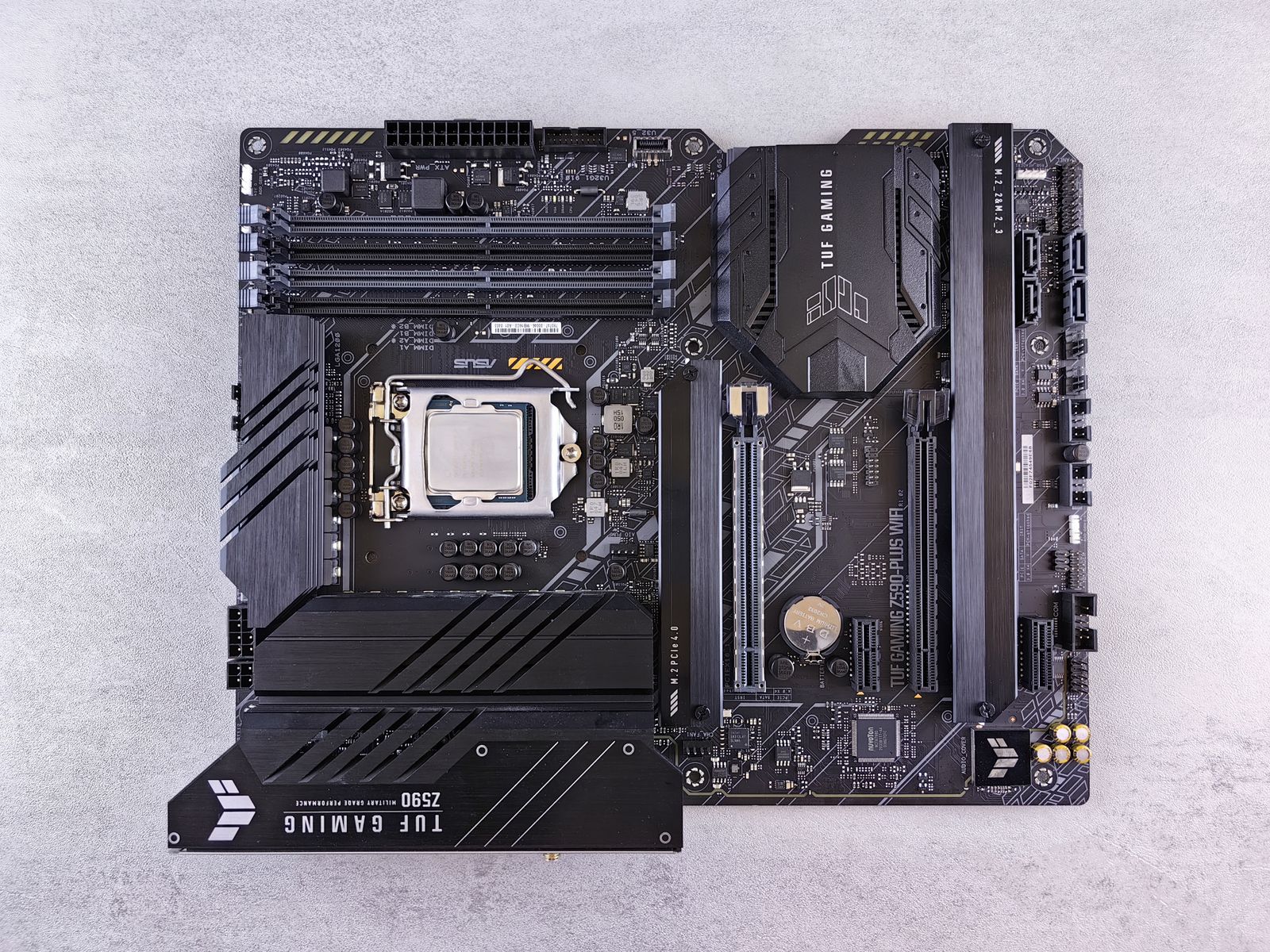
A typical desktop motherboard has:
| Part | What it is for | In the building |
|---|---|---|
| CPU socket | Holds the processor (CPU) | The chef's station |
| RAM slots (DIMM slots) | Hold the memory modules (Memory) | The countertop's place |
| PCIe slots | Expansion cards: graphics card, network card... | Extra rooms you can add |
| M.2 slots | Small, fast SSDs, lying flat on the board | Built-in shelves |
| SATA ports | Cables to older SSDs and hard disks | Doors to the old storeroom |
| Chipset | Manages the slower connections (see below) | The reception desk |
| Firmware chip (BIOS/UEFI) | The first program that runs when you press power | The building's manual |
| CMOS battery | A coin cell (usually a CR2032) that keeps the clock and settings alive when unplugged | The clock that never stops |
| Power connectors | A 24-pin main cable plus 4/8-pin cables for the CPU | The building's electricity |
| VRM | Converts the power supply's 12 V into the low, precise voltage the CPU needs | The electrical panel |
| Headers | Pins for the case's front USB ports, buttons, fans | Internal plugs |
| Rear I/O panel | All the ports on the back of the PC | The doors to the street |
What is firmware?
The firmware is the software stored on the motherboard itself. It runs first, checks the hardware and starts the operating system. It is stored in flash memory, so it survives with the power off. We will see how a computer boots later in this unit.
Buses: corridors of different widths
The architecture page showed one bus. Real computers have many buses, each designed for a different job and speed — like a building with a motorway to the kitchen, normal corridors to the offices, and a narrow staircase to the basement.
Here is how a modern PC is wired:
flowchart TB
    RAM["<b>RAM</b><br>the countertop"]
    GPU["<b>Graphics card</b><br>PCIe x16 slot"]
    NVME["<b>First M.2 SSD</b><br>PCIe x4"]
    subgraph CPU ["CPU (the chef)"]
        MC["memory controller"]
        PC["PCIe lanes"]
    end
    CH["<b>Chipset</b><br>the reception desk:<br>handles the slower doors"]
    subgraph SLOW ["Connected through the chipset"]
        direction LR
        USB["USB ports"]
        SATA["SATA disks"]
        NVME2["more M.2 slots"]
        NET["Ethernet, Wi-Fi,<br>audio"]
    end
    MC <-->|"memory bus<br>(the widest corridor)"| RAM
    PC <-->|"16 lanes"| GPU
    PC <-->|"4 lanes"| NVME
    CPU <-->|"one link, shared by<br>everything below"| CH
    CH <--> SLOW
Two things to notice:
- The fastest parts — RAM, the graphics card and the first SSD — connect straight to the CPU. No detours.
- Everything else goes through the chipset.
The chipset: the reception desk
The chipset is a chip on the motherboard that manages the slower connections — USB, SATA, extra M.2 slots, network, audio — and links them to the CPU.
Think of it as the building's reception desk. The chef cannot answer every doorbell, so the desk collects all the small deliveries and passes them to the kitchen through one door. That door is shared: if you copy between two disks that both hang from the chipset, they share its link.
The chipset also decides what a motherboard can do: how many USB ports, how many SATA disks, whether the CPU can be overclocked. That is why the same CPU is sold with cheaper and more expensive motherboards.
A bit of history: north and south
Older PCs had two helper chips: the northbridge (fast: RAM and graphics) and the southbridge (slow: disks, USB, audio). Between 2003 (AMD) and 2011 (Intel), CPUs gradually absorbed the northbridge's job — the memory controller and the fast PCIe lanes moved inside the CPU, to cut the distance. What is left today, the "chipset", is basically the old southbridge.
PCI Express: lanes and generations
PCI Express (PCIe) is the main high-speed bus inside a PC. Graphics cards, fast SSDs and network cards all use it.
PCIe is built from lanes. A lane is a small pair of connections: one to send, one to receive, both at once. A device can use several lanes side by side, like a motorway with several lanes of traffic:
| Link | Lanes | Typical use |
|---|---|---|
| x1 | 1 | Wi-Fi card, sound card |
| x4 | 4 | NVMe SSD (M.2) |
| x16 | 16 | Graphics card |
Every new generation of PCIe roughly doubles the speed of each lane:
| Generation | Year (spec) | Per lane, each direction |
|---|---|---|
| PCIe 1.0 | 2003 | ~0.25 GB/s |
| PCIe 2.0 | 2007 | ~0.5 GB/s |
| PCIe 3.0 | 2010 | ~1 GB/s |
| PCIe 4.0 | 2017 | ~2 GB/s |
| PCIe 5.0 | 2019 | ~4 GB/s |
| PCIe 6.0 | 2022 | ~8 GB/s |
So a graphics card on PCIe 4.0 x16 has about 2 × 16 = 32 GB/s in each direction.
Good news: PCIe is backwards compatible. A PCIe 4.0 SSD works in a PCIe 3.0 slot — it just runs at PCIe 3.0 speed. And a smaller card fits in a bigger slot: an x1 card works in an x16 slot.
Why lanes and not one giant fast wire?
Old buses were parallel: many wires sending bits side by side, all in step. At high speeds the bits on different wires arrive at slightly different times and get mixed up. PCIe is serial: each lane sends one bit after another, very fast, and lanes are independent. It is easier to go fast with a few independent lanes than to keep 32 wires perfectly in step.
USB, SATA and M.2
USB: the universal door
USB (Universal Serial Bus) is the standard connection for peripherals: keyboards, mice, phones, memory sticks, external disks.
Its big idea, in 1996, was to replace a zoo of different ports with one. Since then it has kept getting faster:
| Version | Year | Max speed | In MB/s (÷8) |
|---|---|---|---|
| USB 1.0 | 1996 | 12 Mbps | 1.5 MB/s |
| USB 2.0 | 2000 | 480 Mbps | 60 MB/s |
| USB 3.0 (now called USB 3.2 Gen 1) | 2008 | 5 Gbps | 625 MB/s |
| USB 3.2 Gen 2 | 2013 | 10 Gbps | 1,250 MB/s |
| USB4 | 2019 | 40 Gbps | 5,000 MB/s |
Notice the ÷8 trap from the Binary page again: USB speeds are in bits per second. And real transfers are always a bit slower than the maximum, because part of the traffic is used to organize the transfer itself.
This is the answer to the hook: copying photos over a USB 2.0 port or cable is limited to 480 Mbps, while a USB 3.2 port can go 10 or 20 times faster. The port with a blue plastic tongue, or marked SS (SuperSpeed), is usually USB 3.
Careful: USB-C is a shape, not a speed
USB-A (the classic rectangle) and USB-C (the small oval that plugs in both ways) are connectors — the shape of the plug. The version (2.0, 3.2, USB4) is the speed. A USB-C cable can be a slow USB 2.0 cable. If a transfer is slow, check the version of the port and of the cable: the slowest one wins.
SATA: the classic disk cable
SATA (Serial ATA) is the interface used by hard disks and older SSDs, with a thin data cable plus a separate power cable.
Its latest version, SATA III, reaches 6 Gbps — about 600 MB/s in practice. That was plenty for spinning hard disks, but modern SSDs are much faster than that, so SATA is now the bottleneck.
M.2: a slot, not a speed
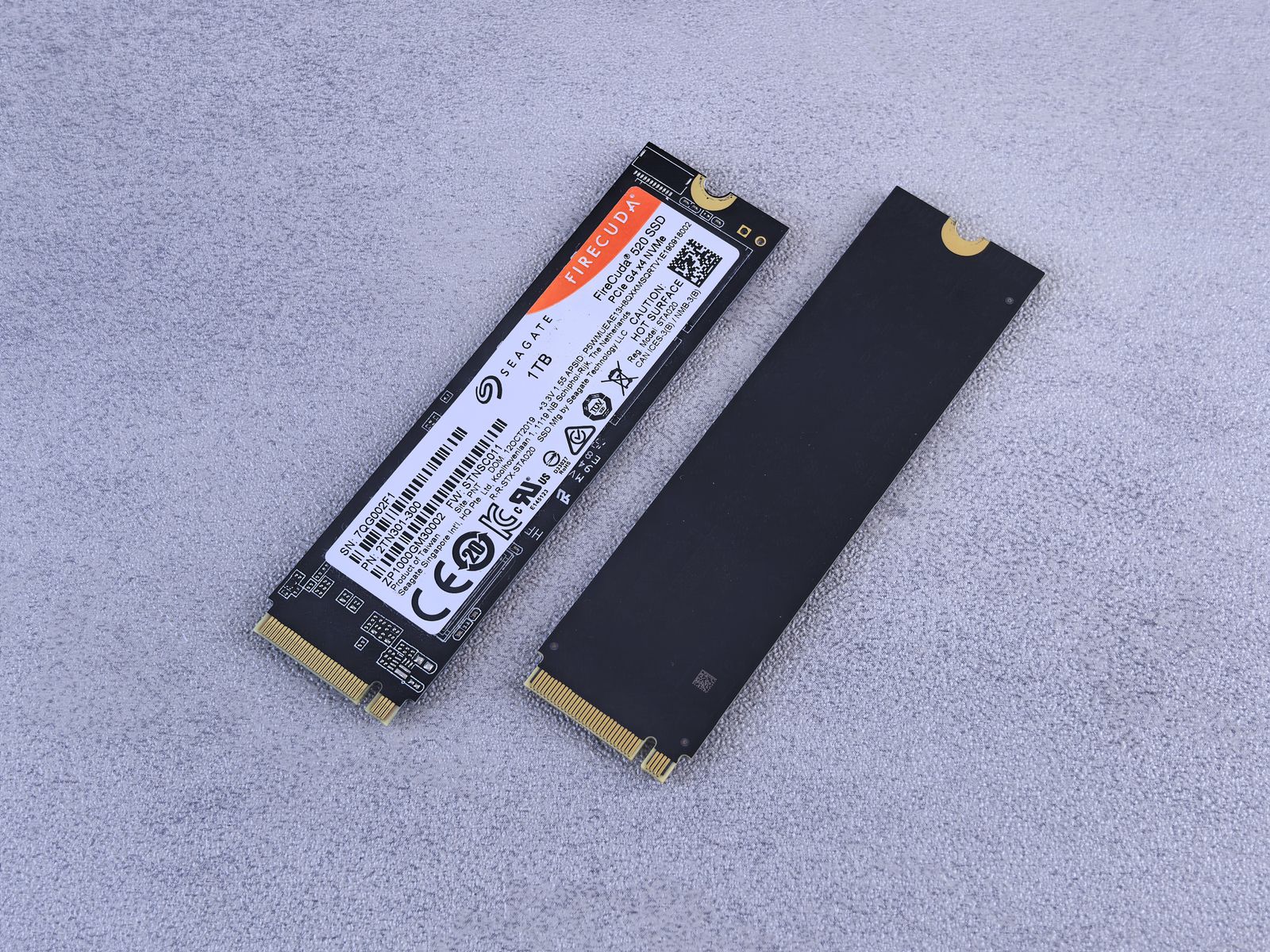
M.2 is a small slot and card format, mainly used for SSDs that lie flat on the motherboard with no cables.
The most common size is 2280: 22 mm wide and 80 mm long. Careful: M.2 is only the shape. An M.2 SSD can talk SATA (up to ~600 MB/s) or PCIe NVMe (many times faster) — and not every slot supports both. Check the manual. The differences between storage types are on the Storage page.
The ports on the back
The rear I/O panel is where the outside world plugs in. On a typical desktop:
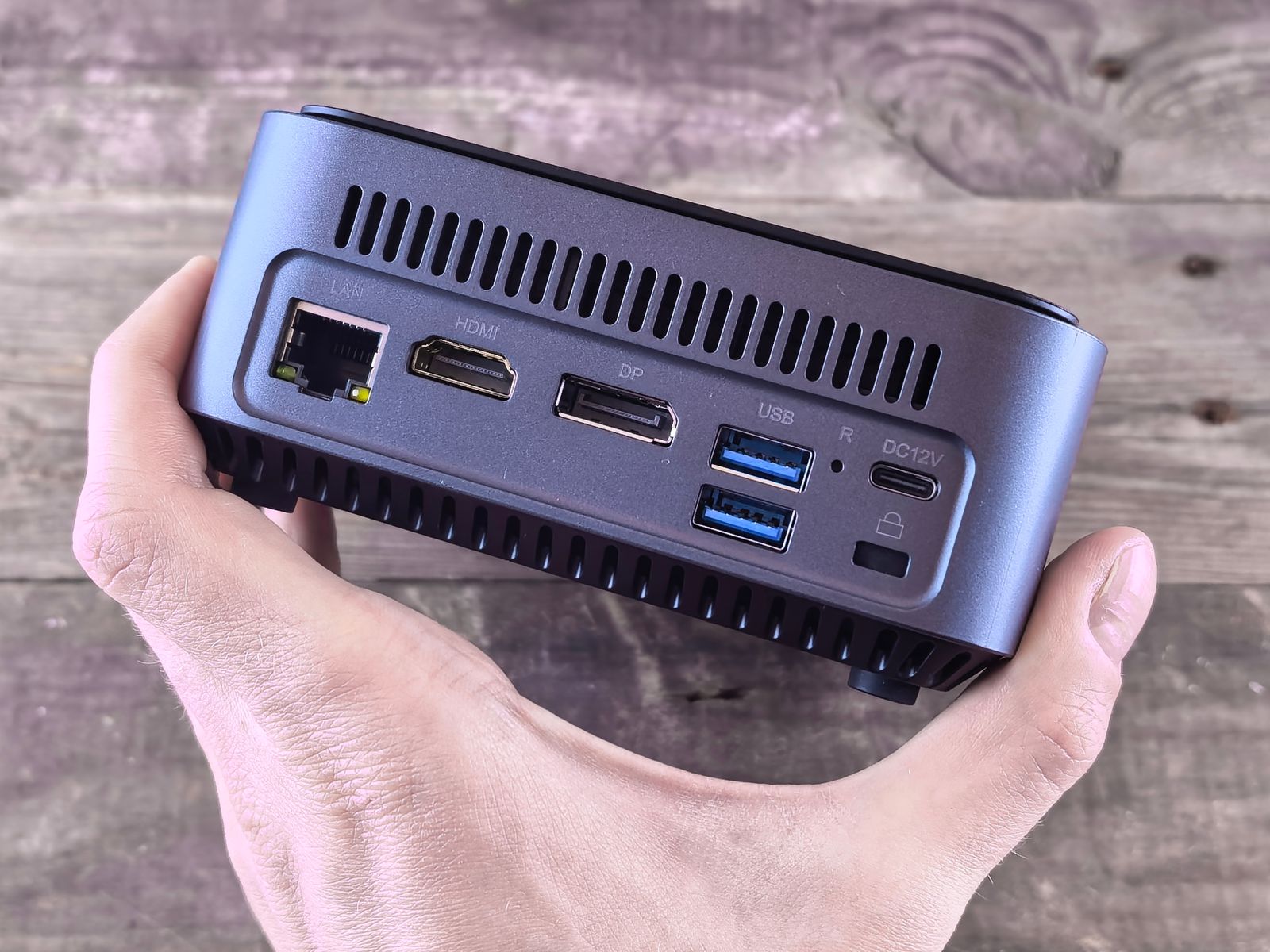
| Port | What it connects |
|---|---|
| USB-A / USB-C | Keyboard, mouse, phone, memory stick, external disk |
| RJ45 (Ethernet) | The network cable |
| Audio jacks (3.5 mm) | Speakers, headphones, microphone — colour-coded (green = out, pink = mic) |
| HDMI / DisplayPort | A monitor (only if the CPU has integrated graphics!) |
| Antenna connectors | Wi-Fi and Bluetooth antennas, if the board has them |
The black-screen classic
A new PC, a new graphics card, and... black screen. Very often the monitor is plugged into the motherboard's HDMI instead of the graphics card's. The motherboard's video ports only work if the CPU has integrated graphics; when a graphics card is installed, use its ports. It is one of the most common mistakes in a first PC build.
Form factors: how big is the board?
A form factor is a standard for the size and shape of a motherboard — where the screw holes, slots and rear panel go — so it fits in any matching case.
| Form factor | Size | Created by | Typical use |
|---|---|---|---|
| ATX | 305 × 244 mm | Intel, 1995 | Standard desktop: many slots |
| micro-ATX | 244 × 244 mm | Intel | Cheaper, more compact desktop: fewer slots |
| mini-ITX | 170 × 170 mm | VIA Technologies, 2001 | Tiny PCs: one PCIe slot, usually two RAM slots |
A smaller board fits in a bigger case (a mini-ITX board in an ATX case), but never the other way round. Laptops and phones do not use these standards at all: each model has its own custom board, often with the CPU and RAM soldered on.
See it in your own computer
On Linux, every PCIe device the motherboard has found:
The same, as a tree — you can see what hangs from what:
The speed and width each PCIe device actually got (look at LnkSta: link status):
A line like LnkSta: Speed 16GT/s, Width x4 means PCIe 4.0 with 4 lanes — probably an NVMe SSD.
The USB tree, with the speed of each port (480M = USB 2.0, 5000M = USB 3):
The motherboard's maker and model:
Key takeaways
- The motherboard is the building: it holds every component and carries the buses that connect them.
- The fastest parts (RAM, graphics card, first SSD) connect straight to the CPU; the rest goes through the chipset, the reception desk.
- PCIe is built from lanes (x1, x4, x16), and each generation doubles the speed per lane. It is backwards compatible.
- USB speeds are in bits per second (÷8 for bytes), and USB-C is a connector shape, not a speed.
- SATA tops out at ~600 MB/s; M.2 is a slot shape that can carry SATA or much faster PCIe NVMe.
- Form factors (ATX, micro-ATX, mini-ITX) standardize the board's size so it fits in a case.
Quick check
1. What is the main job of the motherboard?
- To hold every component and connect them with buses
- To run the programs, like a second CPU
- To store the files when the computer is off
- To cool the CPU and the graphics card
The motherboard is the building: it has the sockets and slots where every part goes, and the buses that let them talk. It does not compute or store your files itself.
2. Which of these usually connects straight to the CPU, not through the chipset?
- The graphics card in the main PCIe x16 slot
- The USB ports on the back panel
- A SATA hard disk
- The onboard audio
The fastest parts — RAM, the main graphics card and usually the first M.2 SSD — get direct lanes to the CPU. Slower devices go through the chipset, which shares one link to the CPU.
3. A graphics card runs on PCIe 4.0 x16. What does the x16 mean?
- It uses 16 lanes side by side
- It is the sixteenth generation of PCIe
- It is 16 times faster than PCIe 4.0 x1 because of its generation
- It can hold 16 GB of video memory
x16 is the number of lanes. The generation (4.0) sets the speed of each lane, about 2 GB/s; 16 lanes together give about 32 GB/s in each direction.
4. A friend says: my new cable is USB-C, so it must be fast. Why might they be wrong?
- USB-C is the shape of the connector, not the speed
- USB-C cables only work with phones
- USB-C is always slower than USB-A
- USB-C only carries power, not data
USB-C describes the connector. The speed depends on the USB version (2.0, 3.2, USB4) of both the port and the cable — a USB-C cable can be a 480 Mbps USB 2.0 cable.
5. A USB 2.0 port has a maximum speed of 480 Mbps. What is that in megabytes per second?
- 60 MB/s
- 480 MB/s
- 3,840 MB/s
- 48 MB/s
USB speeds are in bits per second. There are 8 bits in a byte: 480 ÷ 8 = 60 MB/s — and in practice a bit less.
6. You build a PC with a graphics card, plug the monitor into the motherboard's HDMI port and get a black screen. What is the most likely cause?
- The motherboard's video port only works with integrated graphics
- HDMI does not work on ATX motherboards
- The graphics card needs a mini-ITX motherboard
- The monitor needs a SATA cable as well
The motherboard's HDMI/DisplayPort ports are wired to the CPU's integrated graphics. With a graphics card installed (or a CPU without integrated graphics), the monitor must go into the graphics card's ports.
7. Select the two statements that are true.
- An M.2 SSD can use either SATA or PCIe NVMe
- A PCIe 4.0 SSD works in a PCIe 3.0 slot, at PCIe 3.0 speed
- An ATX motherboard fits in a mini-ITX case
- SATA III is faster than PCIe 4.0 x4
M.2 is only a slot shape; the drive can talk SATA or PCIe NVMe. PCIe is backwards compatible, running at the speed of the older side. A bigger board never fits a smaller case, and SATA III (~600 MB/s) is far slower than PCIe 4.0 x4 (~8 GB/s).
We have the chef and the building. Next, the place where the chef actually works: the different kinds of memory.